Evidence Board features: everything it does, by plan
The board
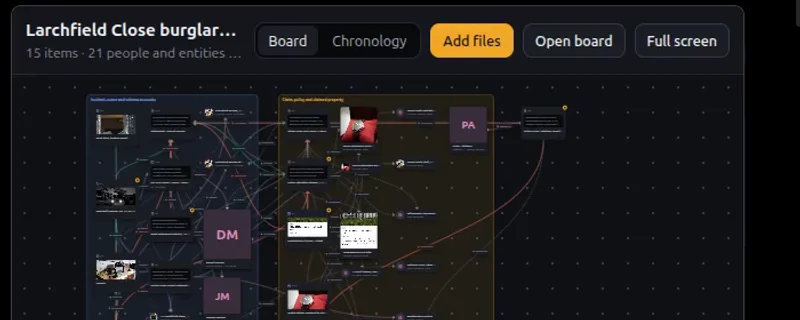
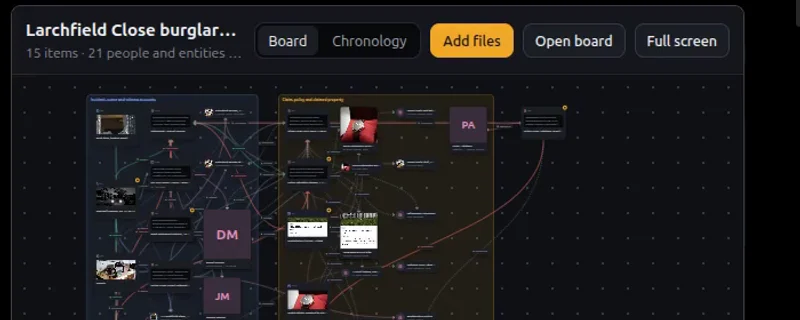
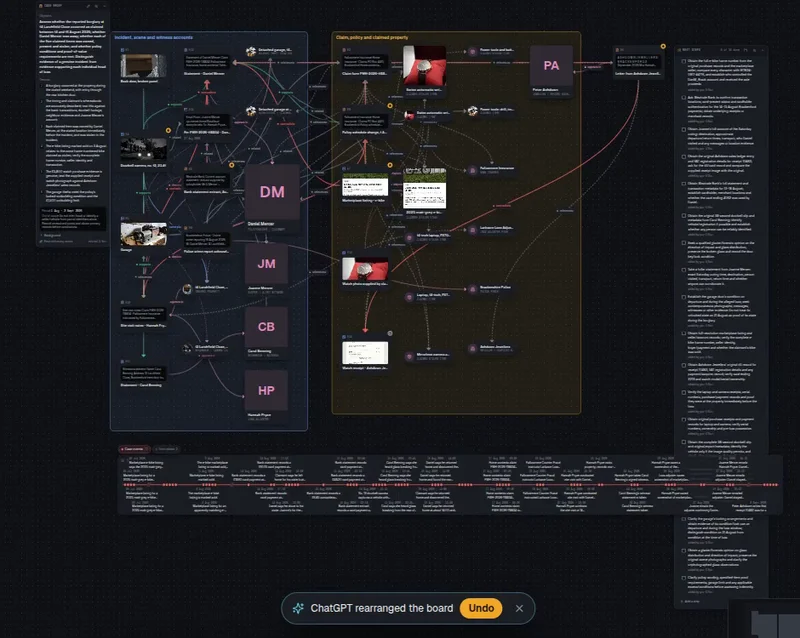
19A case is one board: the evidence, the people and places in it, and the string between them.
Cards for every kind of evidence
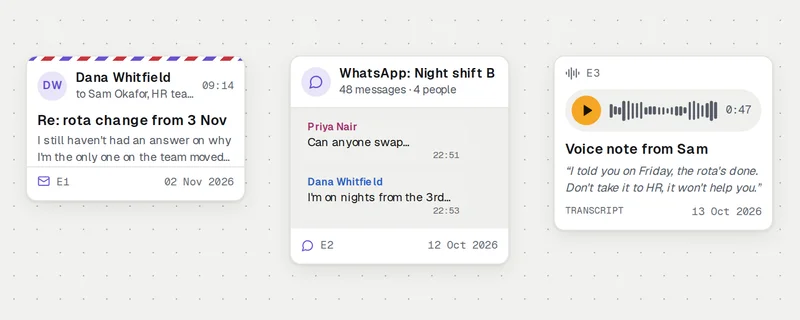
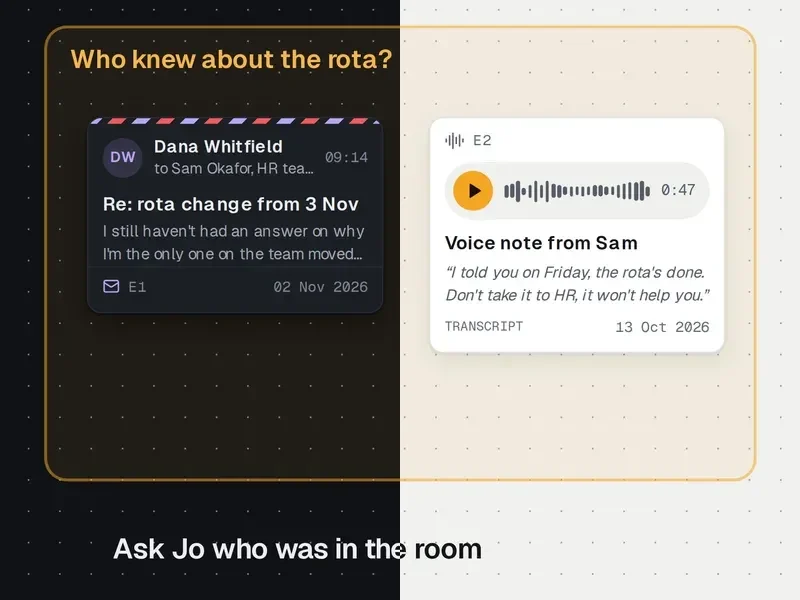
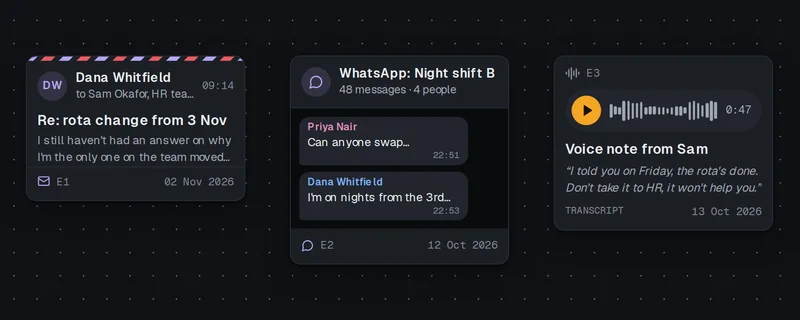
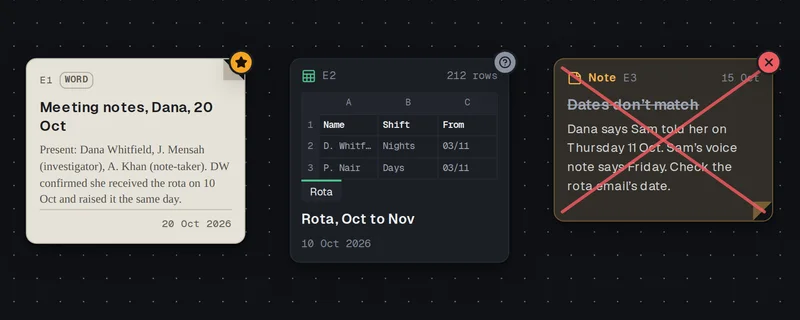
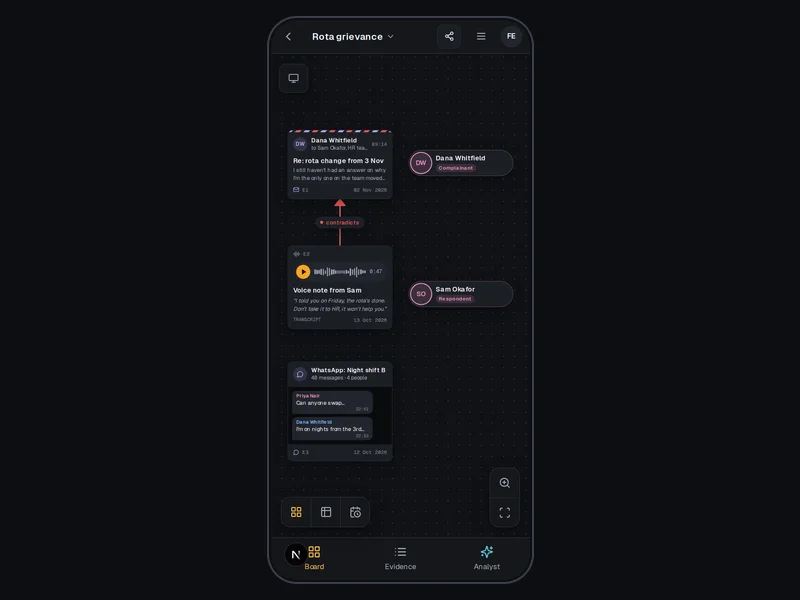
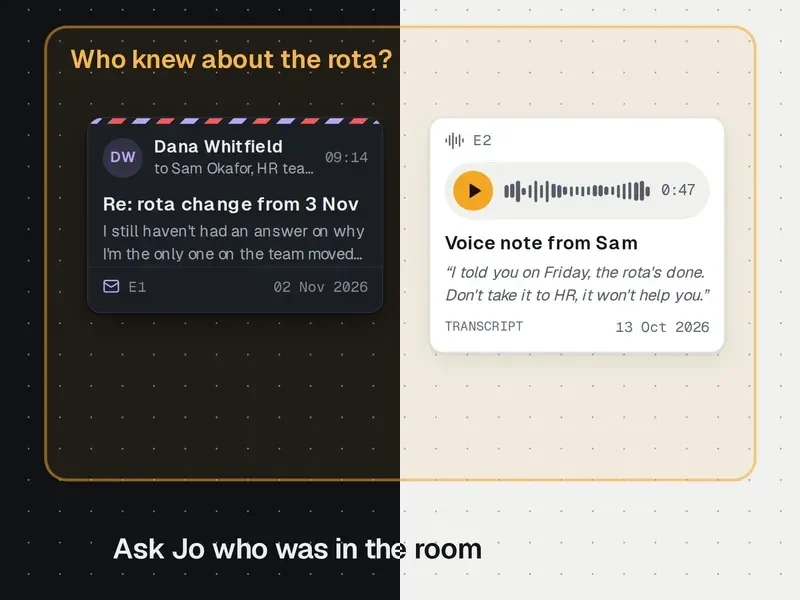
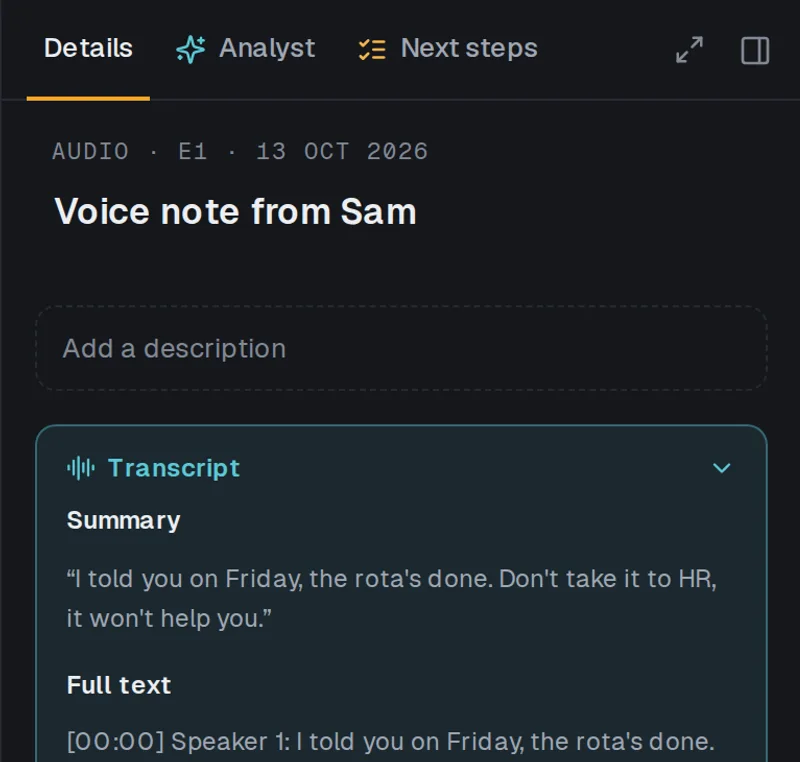
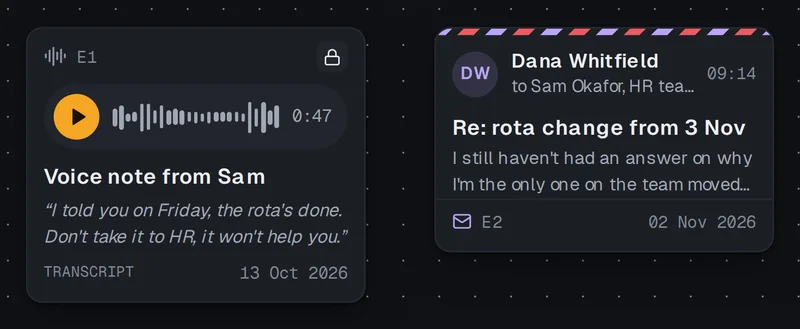
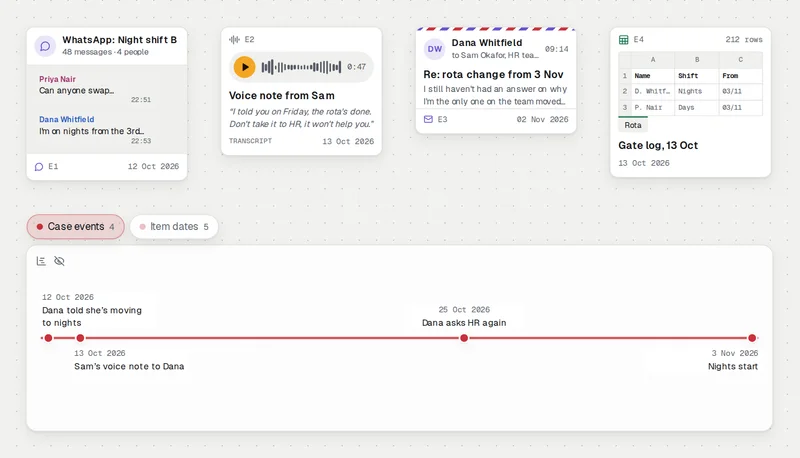
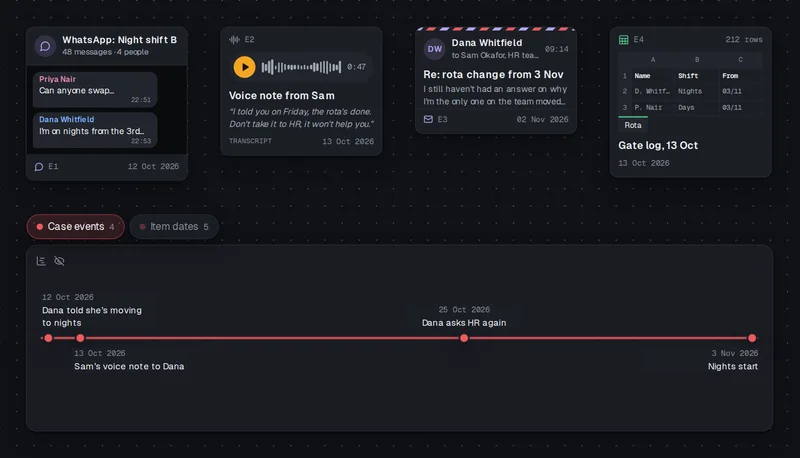
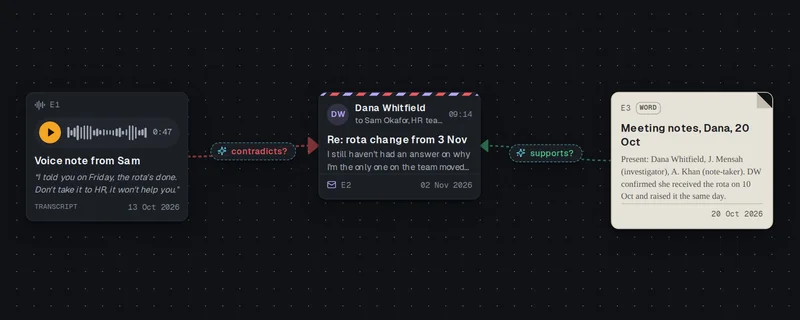
Documents, photos, emails, chats, recordings, videos, web pages and notes, each drawn as what it is: an email as a message, a chat as a thread, a recording as a player. Make a card bigger and it shows more.
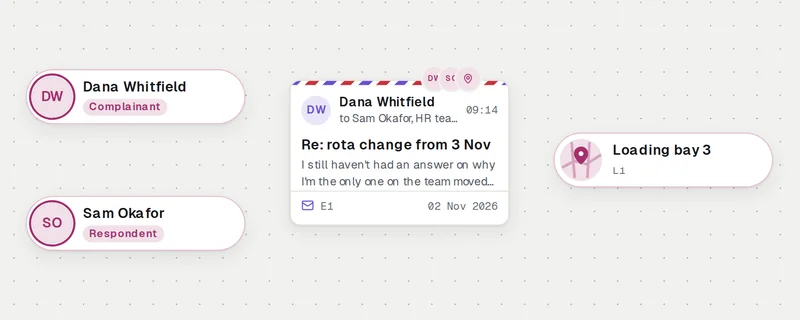
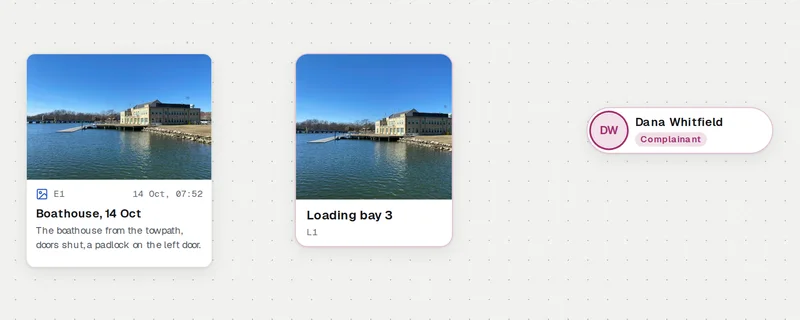
People, places and things
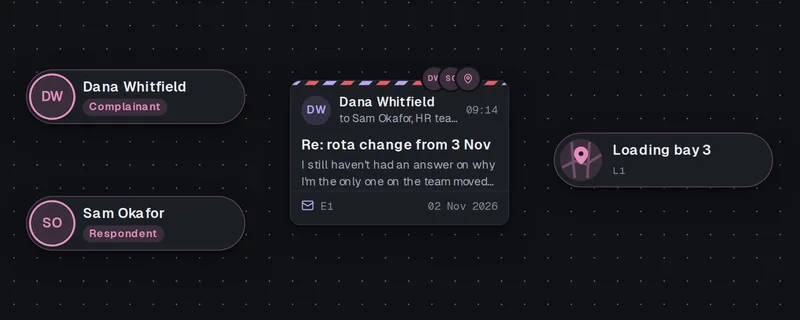
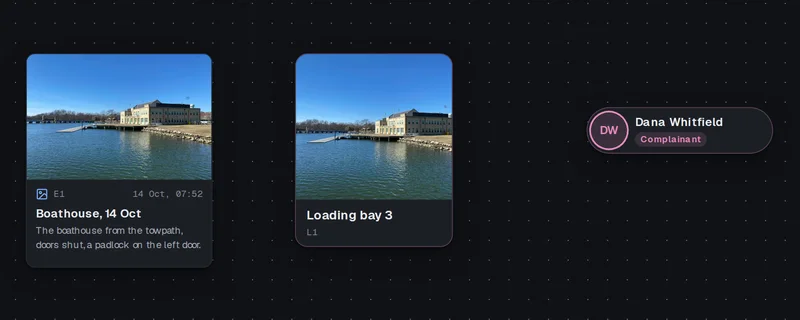
A card for each person, place, company or object the case is about, with its picture, joined to the evidence it appears in.
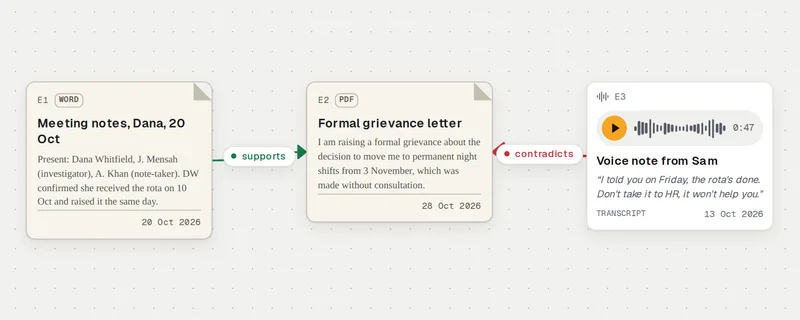
Labelled string
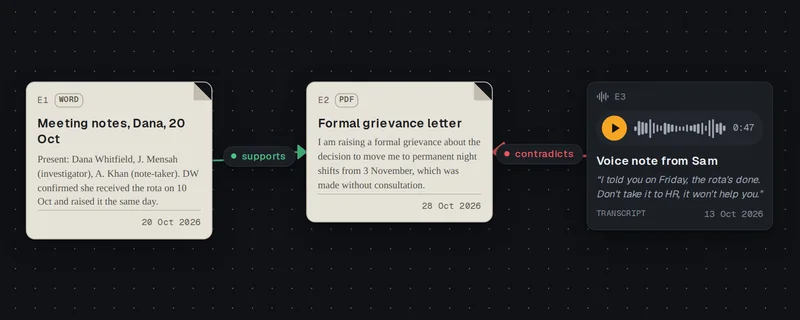
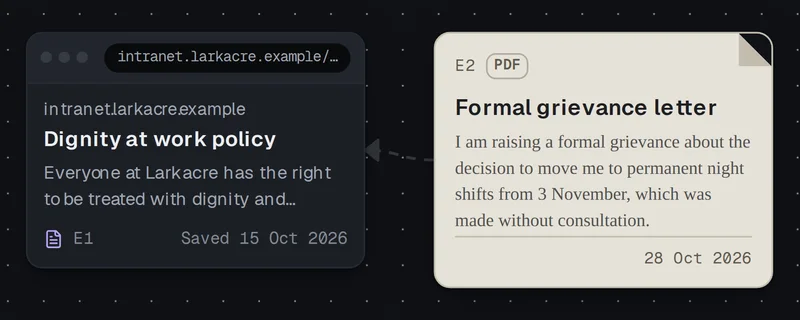
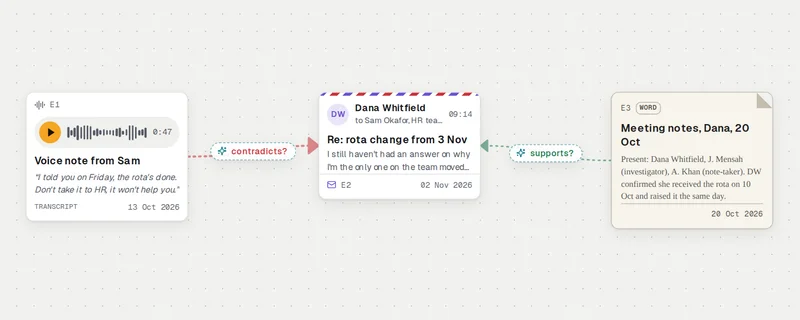
Links between cards say what they mean: supports, contradicts, same person, same place, same time, references. Supports and contradicts always show, contradictions in red; the rest stay faint until you point at a card, so the board stays readable.
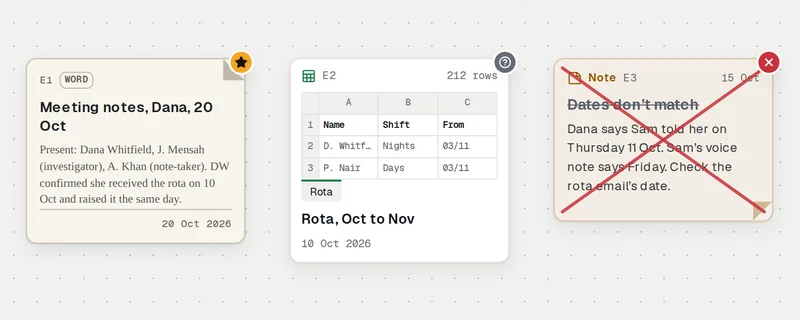
Marks on cards
Mark a card key, unconfirmed or ruled out.
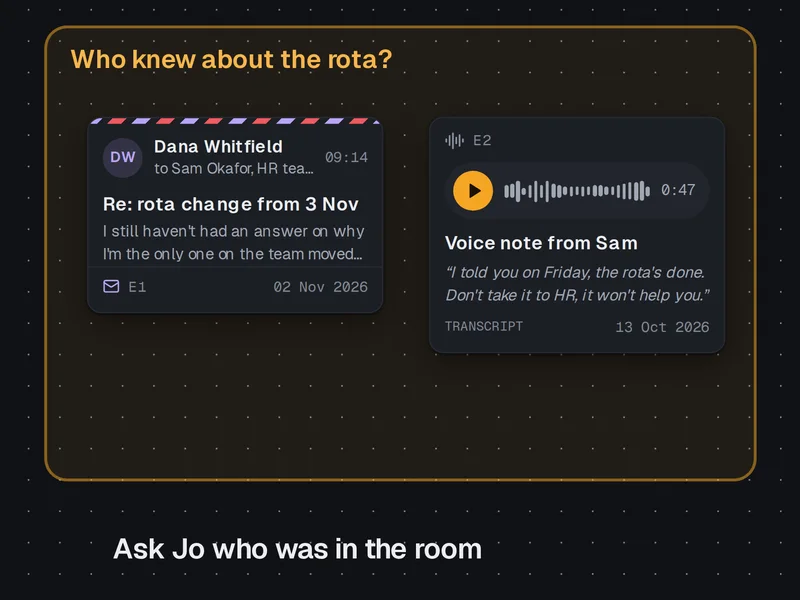
Text and coloured zones
Write on the board, a click into it to change it, on a background if you like; and draw coloured zones to group cards.
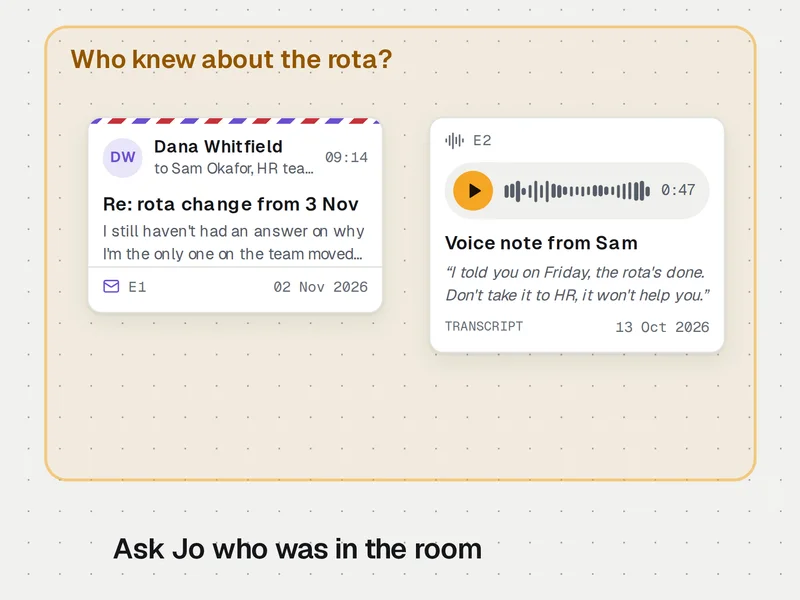
Board layouts
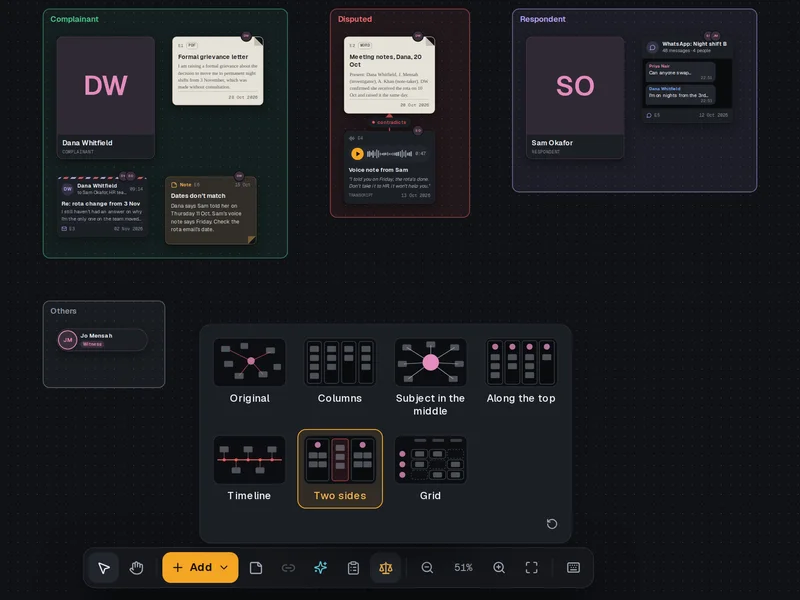
Show the same board another way, from the Layout icon in the toolbar: in columns by kind, one person in the middle, the people across the top, along a timeline, as two sides with what’s disputed between them, or as a grid of people against allegations. The cards move into the layout’s zones, which grow to fit, and your own arrangement is kept as Original: Undo, or switch back to it, any time. Your assistant can sort cards into a layout’s zones too.
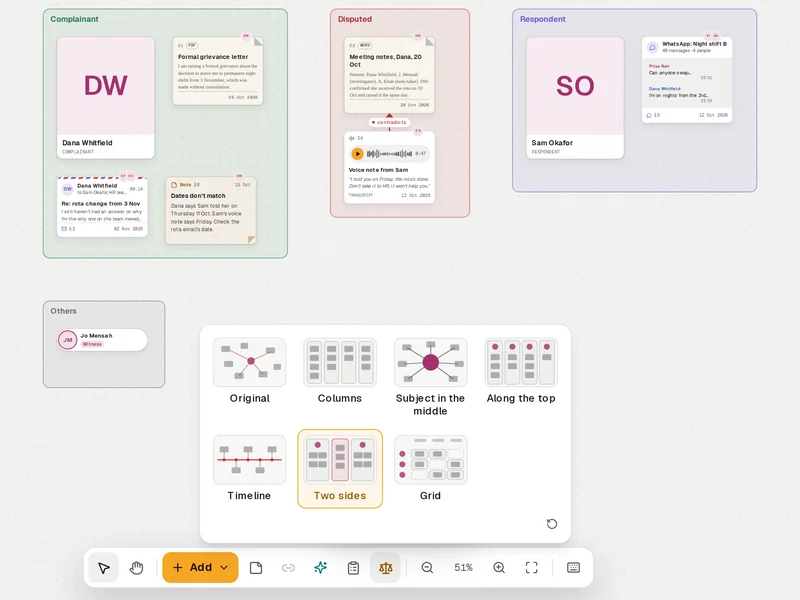
Your own layouts
ProSave a board’s zones as a layout of your own, with their titles or without, never its cards. It joins Layout beside the six, and New case, so every case of a kind starts the same way; cards already in a zone of the same name go into it. Your assistant can save one when you ask, and show a board in it.
Layouts shared with your team
TeamShare a layout you saved with your team, so everyone starts the same kind of case the same way.
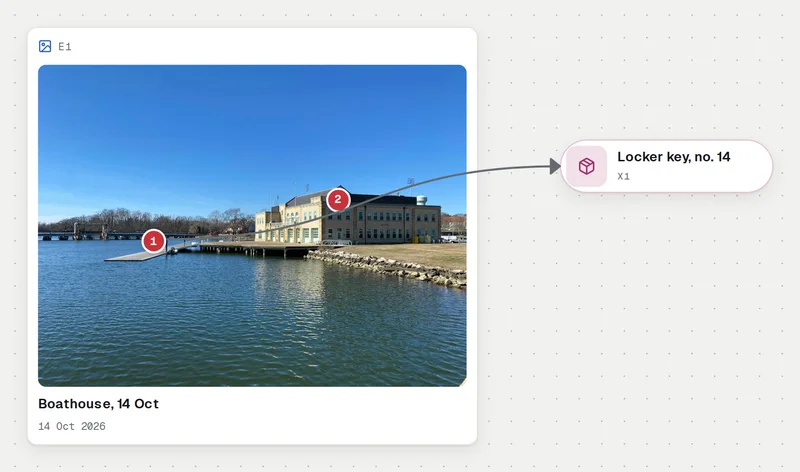
Pins on pictures
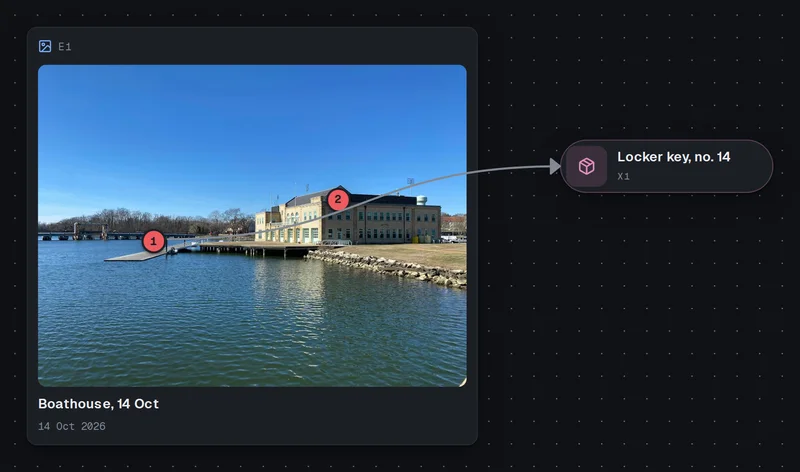
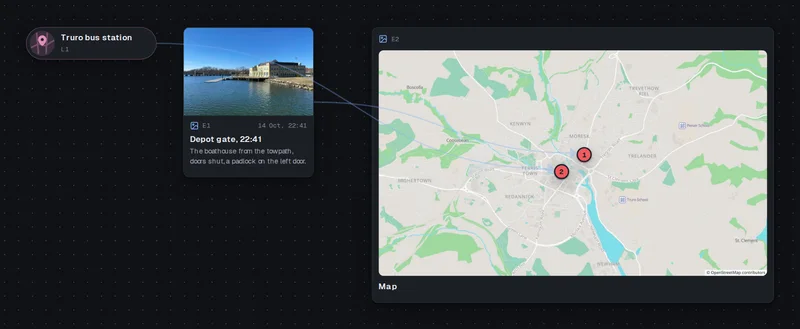
Pin the exact spot on a photo or a plan, and run string from the pin to the evidence about it.
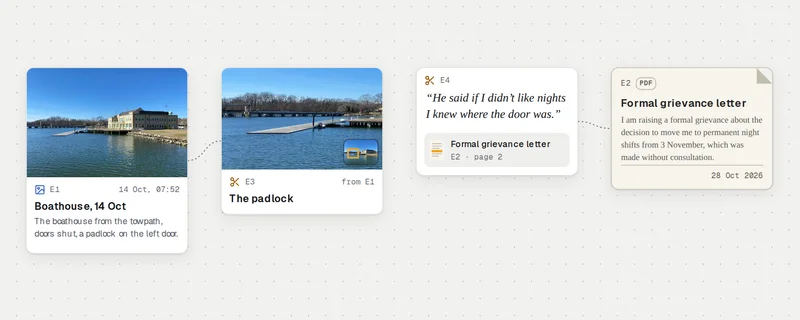
Clippings
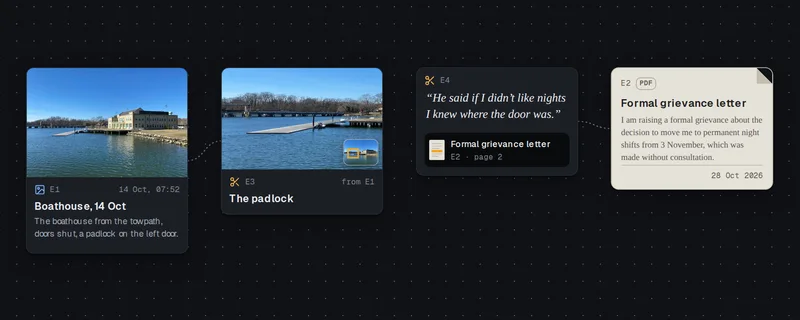
Clip a quote from a document, or part of a photo, into a card of its own, strung to where it came from.
Map cards
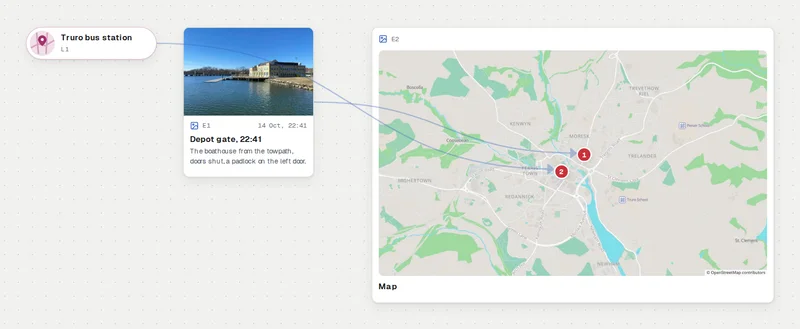
A map of the case’s area with pins at real places, drawn from our own copy of OpenStreetMap, so no map service sees what you look at.
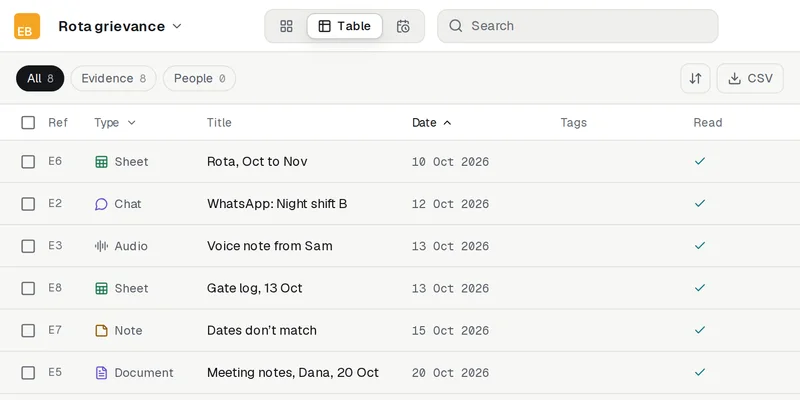
Board, Table and Chronology
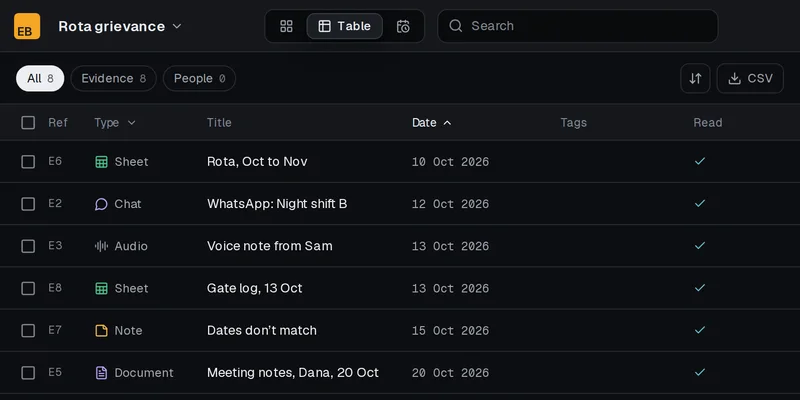
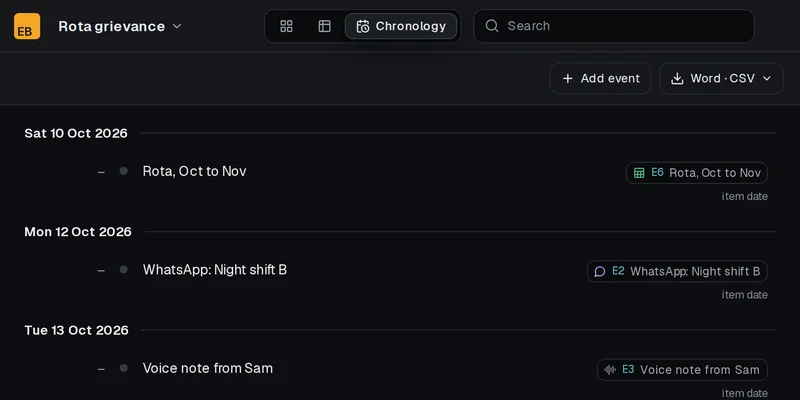
The same case as a board, as a table of every item, or as a chronology.
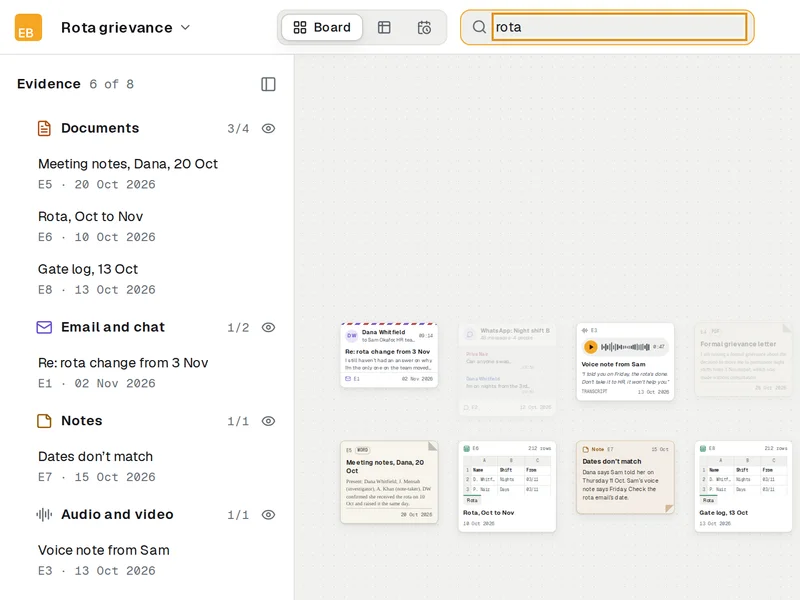
Evidence list and search
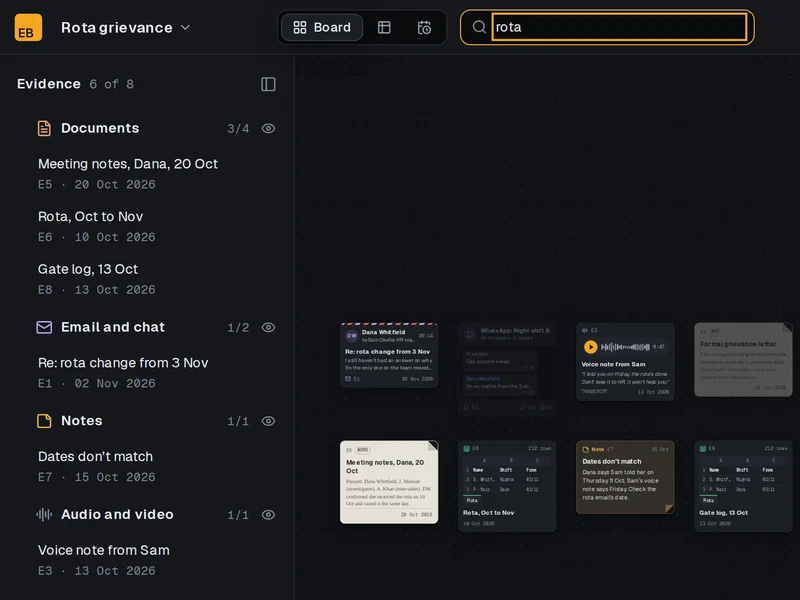
Everything on the case in a list grouped by kind, with filters, and a search across it.
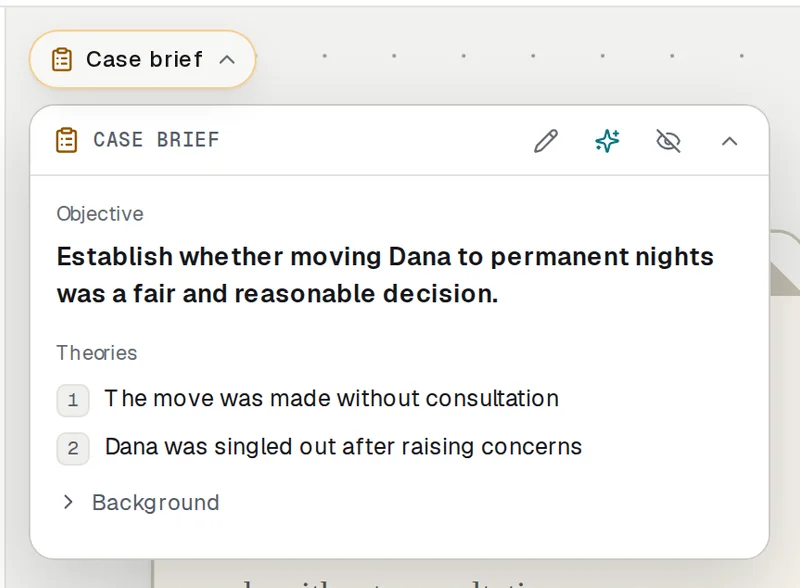
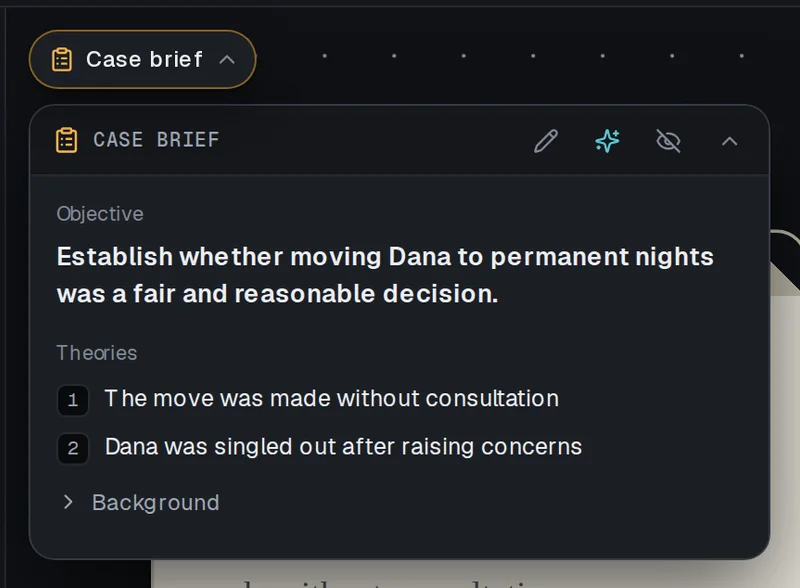
Case brief
The case’s summary and its theories, or allegations, a click away at the top of the board, opening over it.
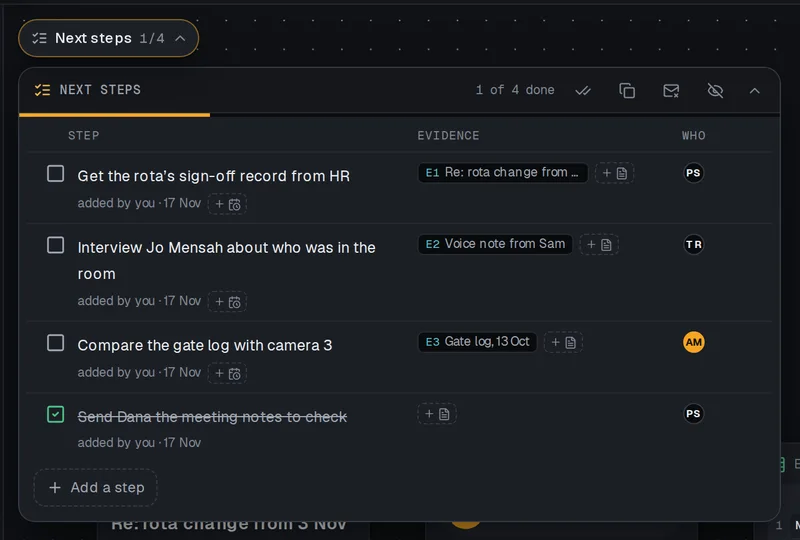
Next steps
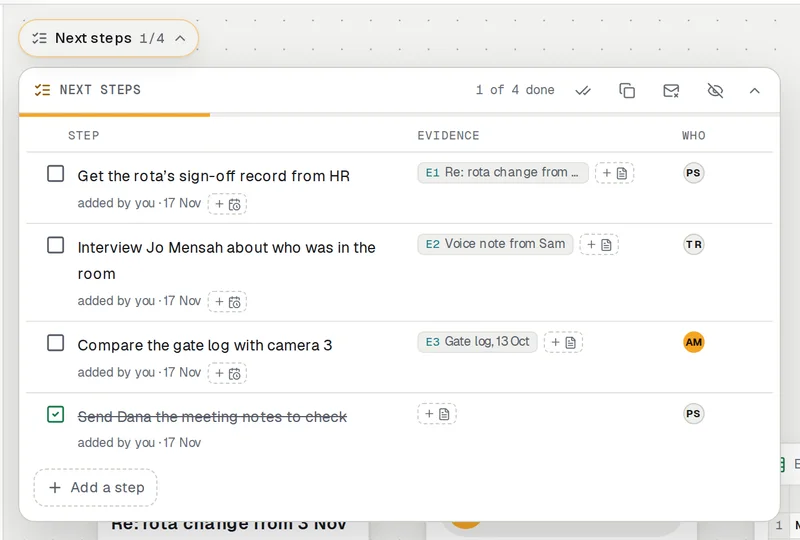
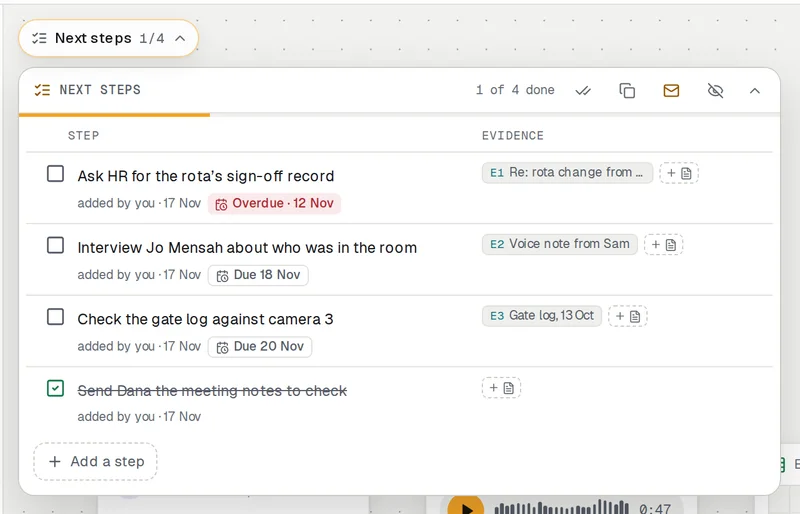
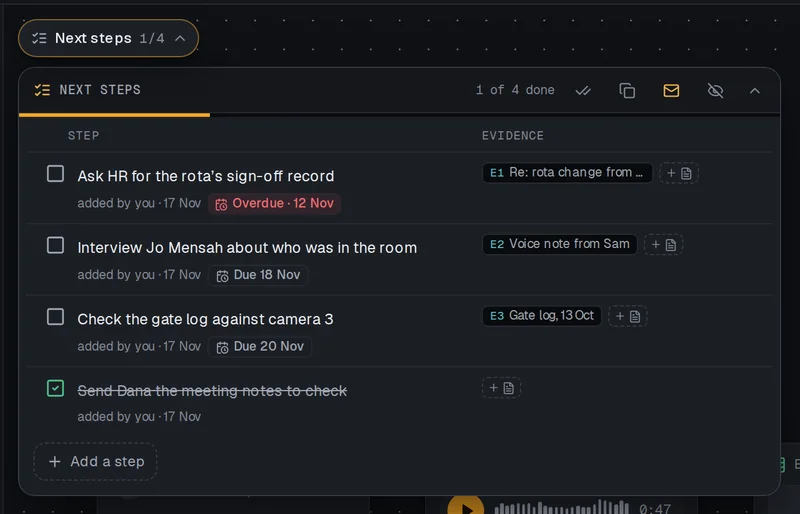
The case’s to-do list, a click away at the top of the board: each step, the evidence it concerns and who has it. On Team, give each step to a colleague; they see it with their own cases.
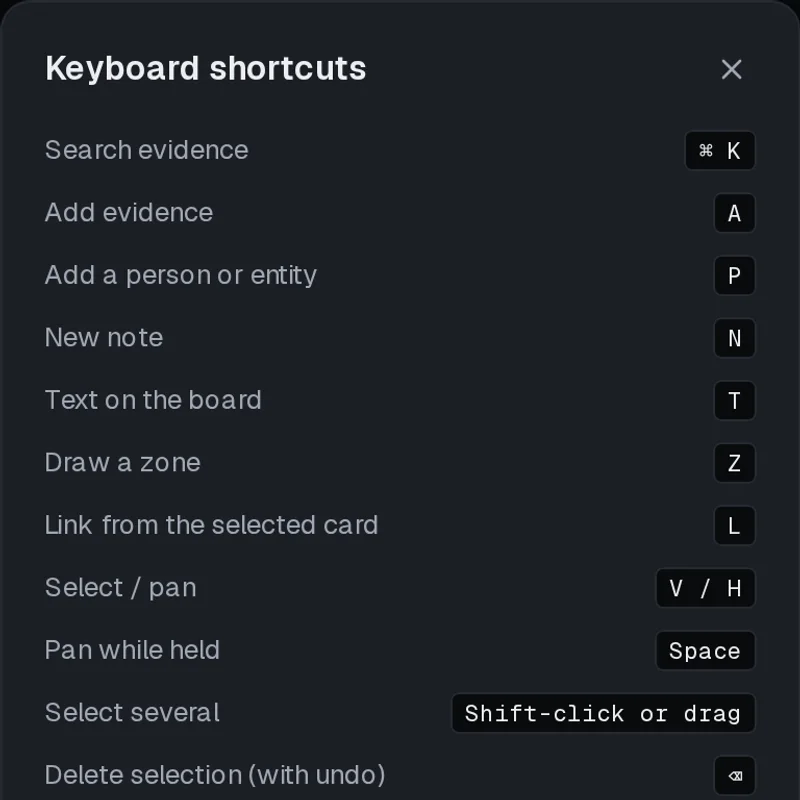
Undo and shortcuts
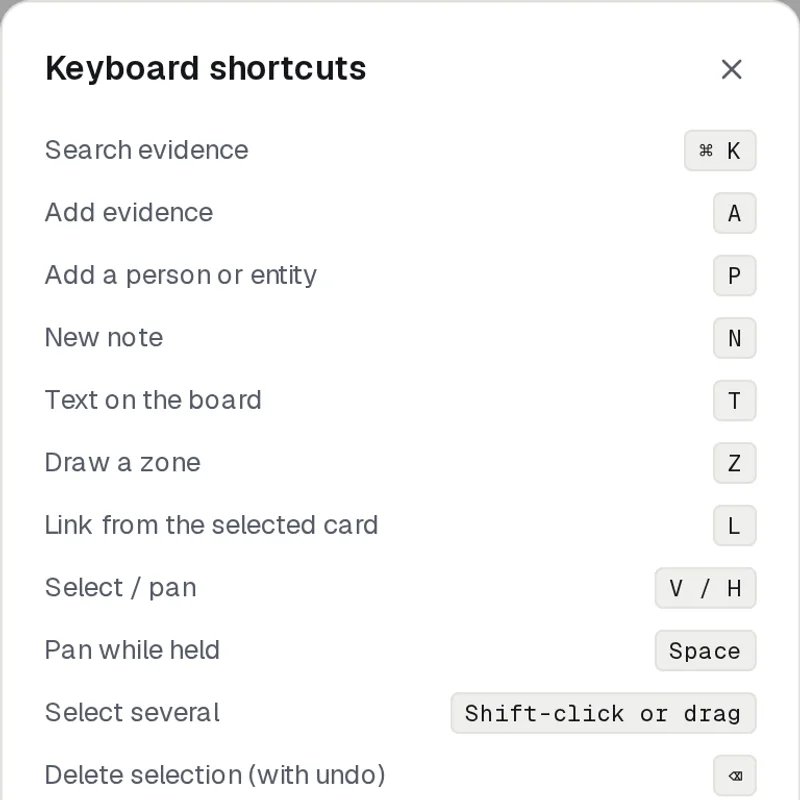
Undo on the board, select all, a right-click menu and keyboard shortcuts.
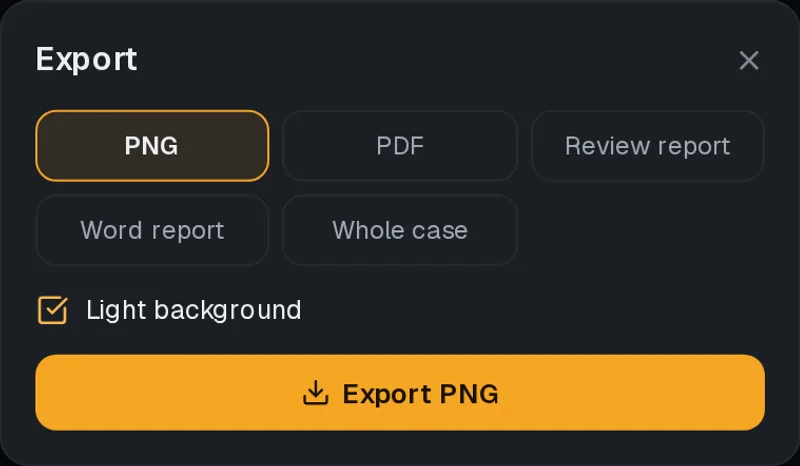
Export the board
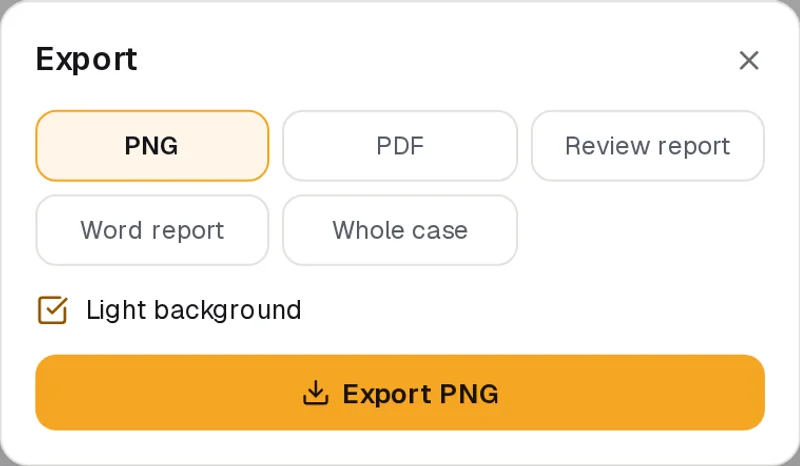
Save the board as a PNG picture or a PDF, or export a report of the case, or the whole case.
On a phone
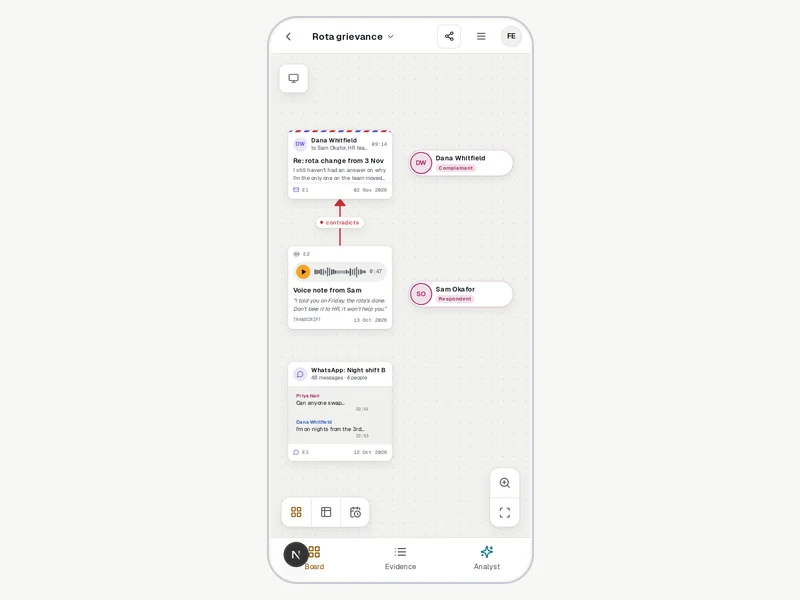
Every page fits a phone’s screen, the board included. It runs in the browser: there’s nothing to install.
Dark or light
A dark theme by default, and a light one.
Evidence in, and read
14Drop files on the board. Their text is taken without AI; what needs reading, your assistant reads.
Drop files on the board
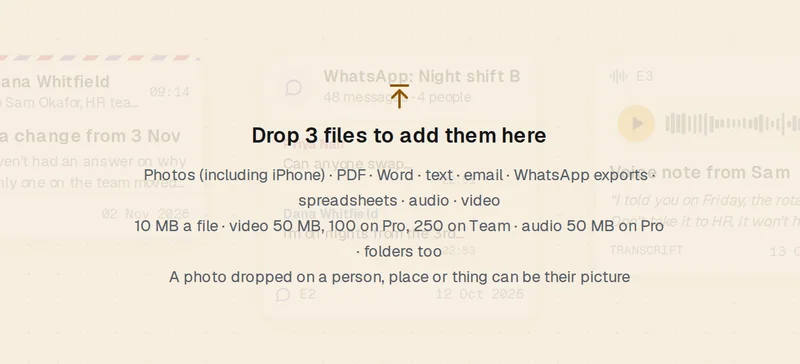
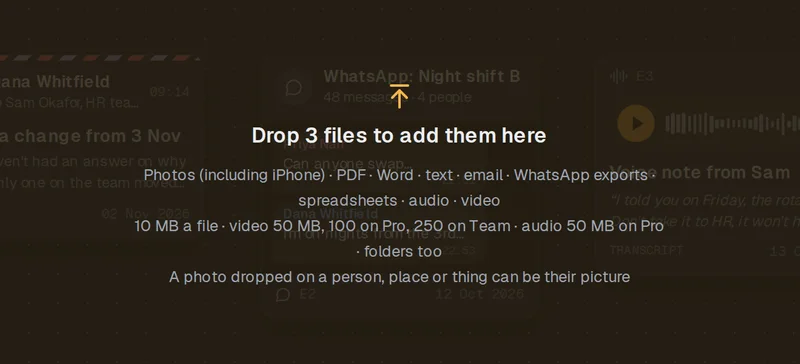
Drag files onto the board or choose them. Big uploads go up in pieces and carry on if the connection drops.
The files it takes
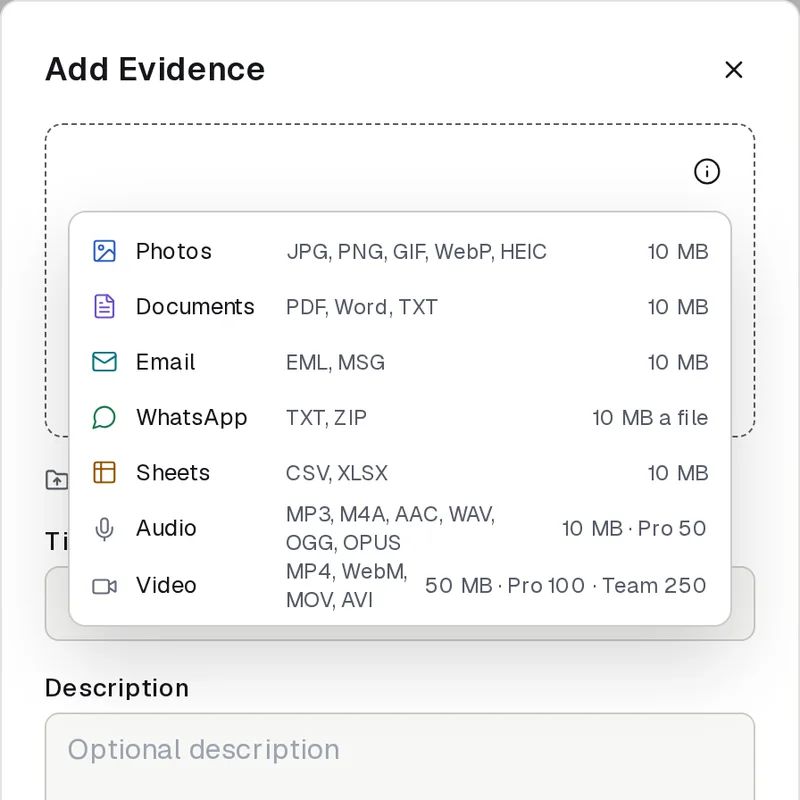
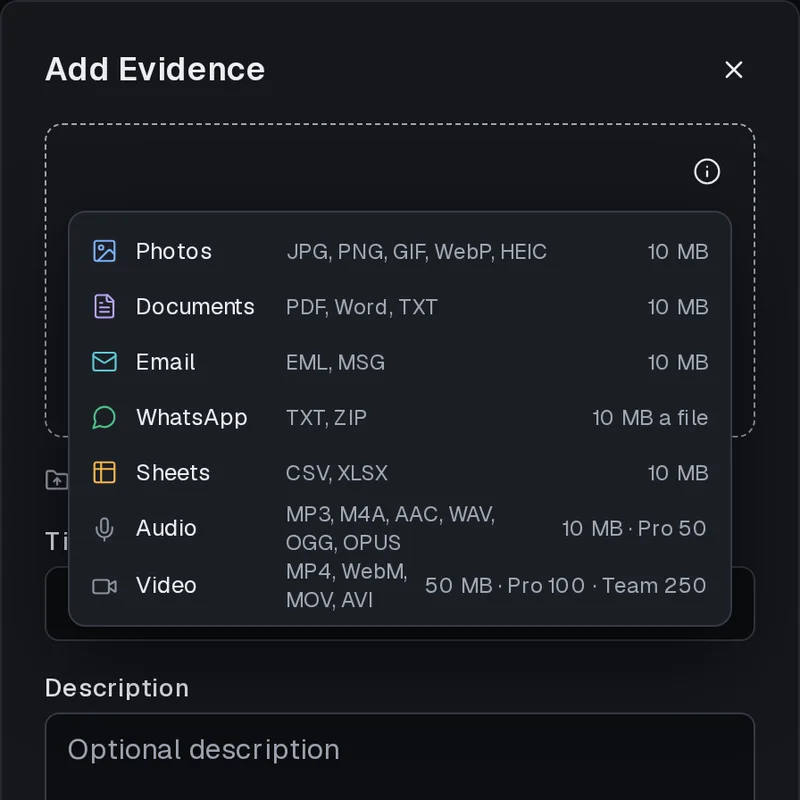
PDF, Word and text files; emails (EML and MSG), their attachments as cards of their own; WhatsApp chat exports; spreadsheets (CSV and XLSX); photos (JPG, PNG, GIF, WebP and iPhone HEIC); audio (MP3, M4A, AAC, WAV, OGG and voice notes); video (MP4, MOV, WebM and AVI, as CCTV systems export it).
File sizes
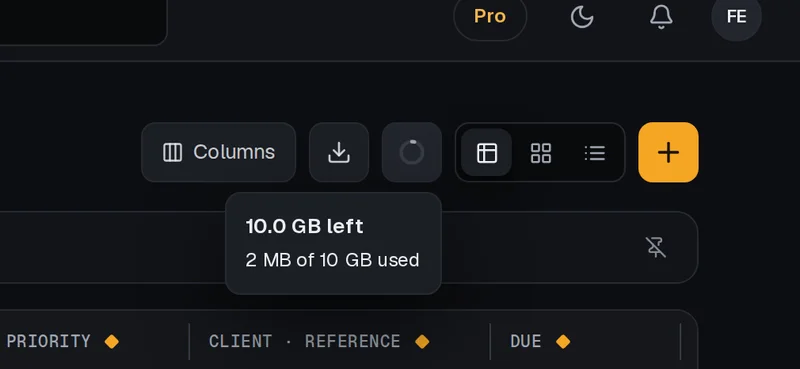
Up to 10 MB a file. Video up to 50 MB on Free, 100 MB on Pro and 250 MB on Team; audio up to 10 MB on Free and 50 MB on Pro and Team. In all, 250 MB on Free, 10 GB on Pro and 50 GB a seat on Team; the ring on your cases page shows what’s left.
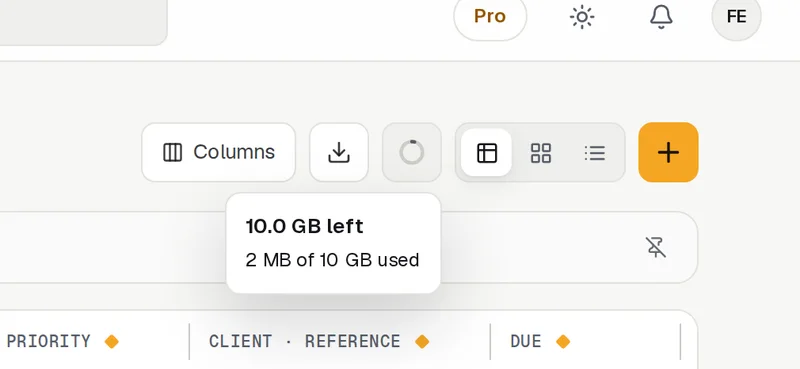
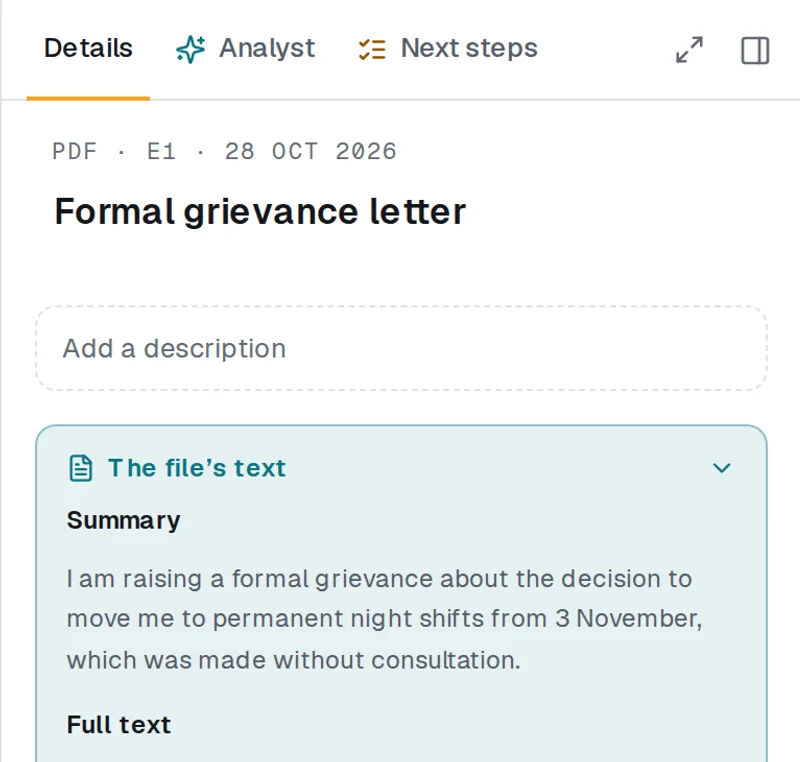
Text taken without AI
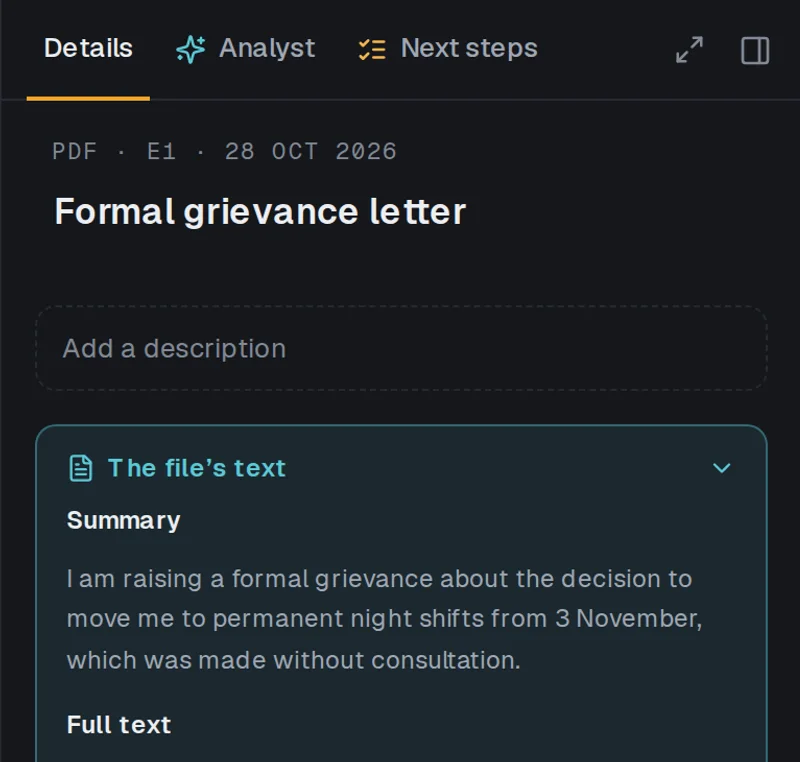
The words in a PDF, a Word document, an email, a spreadsheet or a chat are taken by the app itself, with no AI, so search and your assistant can use them at once.
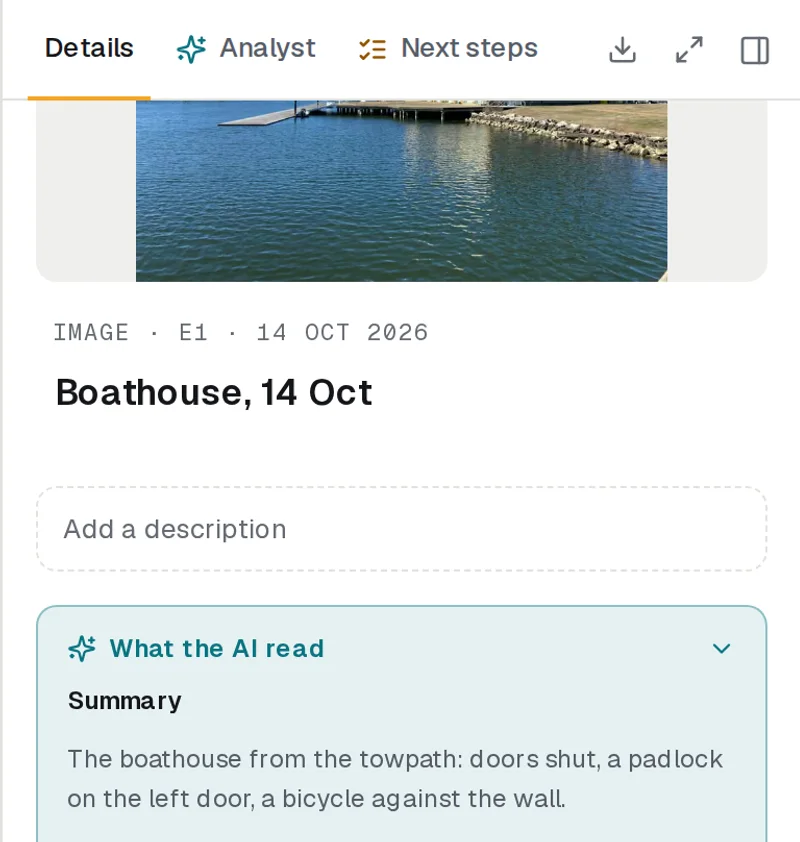
Scans and photos read by your assistant
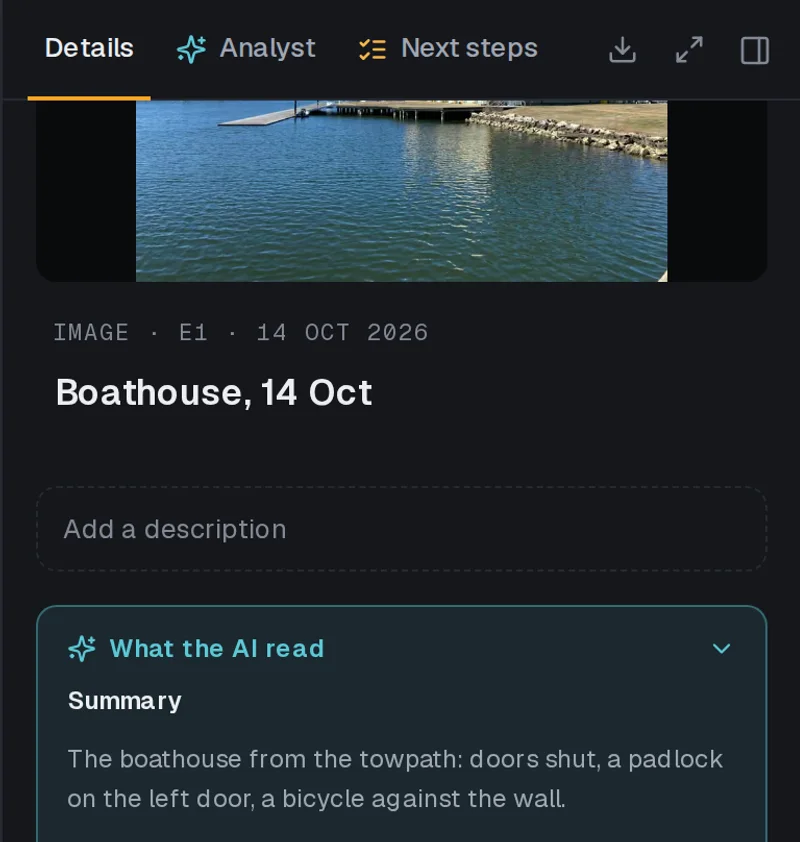
Your assistant reads scanned PDFs, and photos, and saves what it read to the card. A long scan comes to it as an overview first, every page small and blank pages left out, so it asks which pages matter and reads those in full.
Key pages
Mark the pages of a long document that matter, with why. Your assistant reads the ones you marked first, and marks the ones it finds. They show as small pictures in the document’s details, each opening the PDF at that page, and its card says how many.
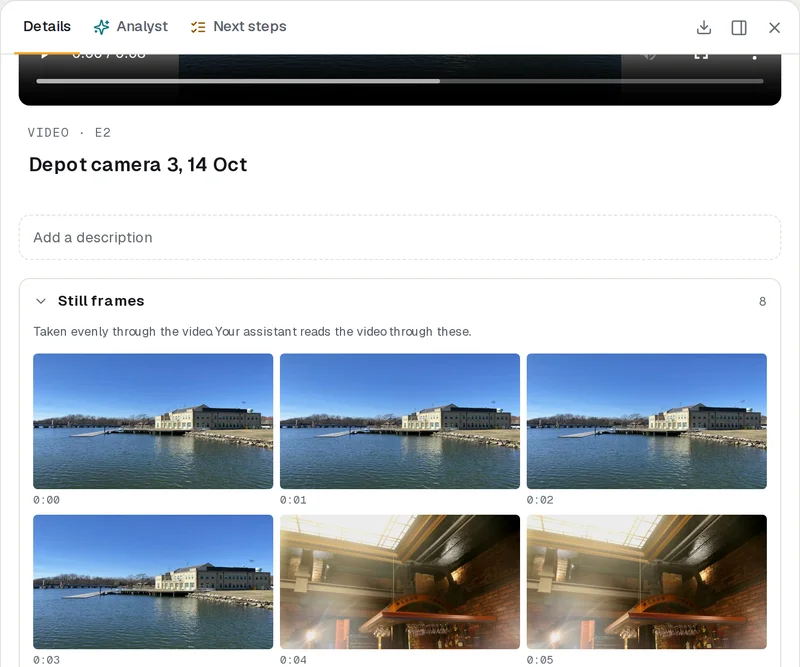
Videos read through their frames
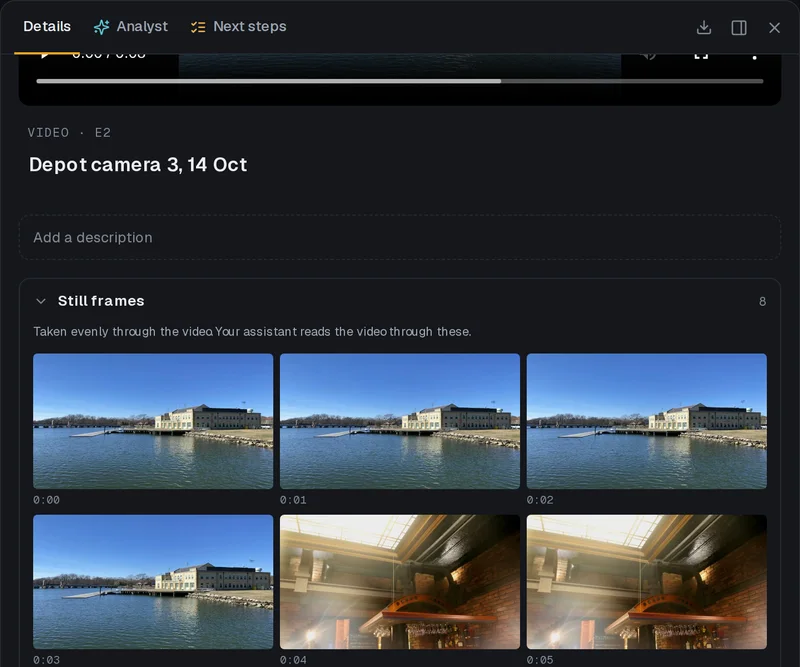
The app takes still frames from each video, as often as one a second for a short clip, and your assistant reads those. To read fine detail, a number plate or a screen, it looks closer at a moment at full size.
Recordings, and a video’s sound, are transcribed with who spoke when: 300 minutes a month on Pro, and 300 a seat on Team. Ones added on Free are transcribed the moment you move up, one that didn’t transcribe has Transcribe now on its card, and the bell tells you when they’re done. It’s done by Deepgram in the EU, the one AI service the app itself uses.
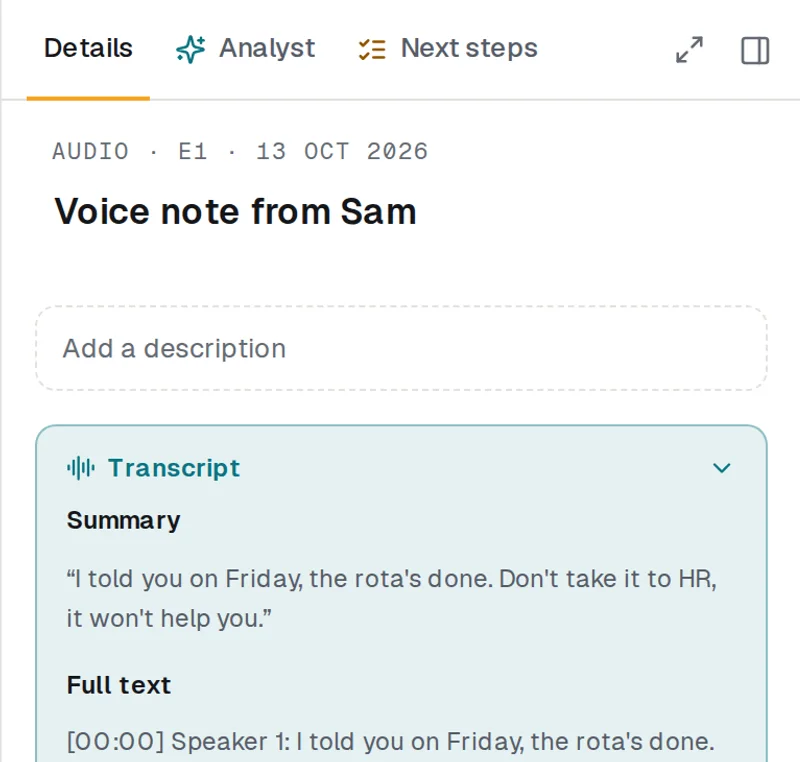
Where each file came from
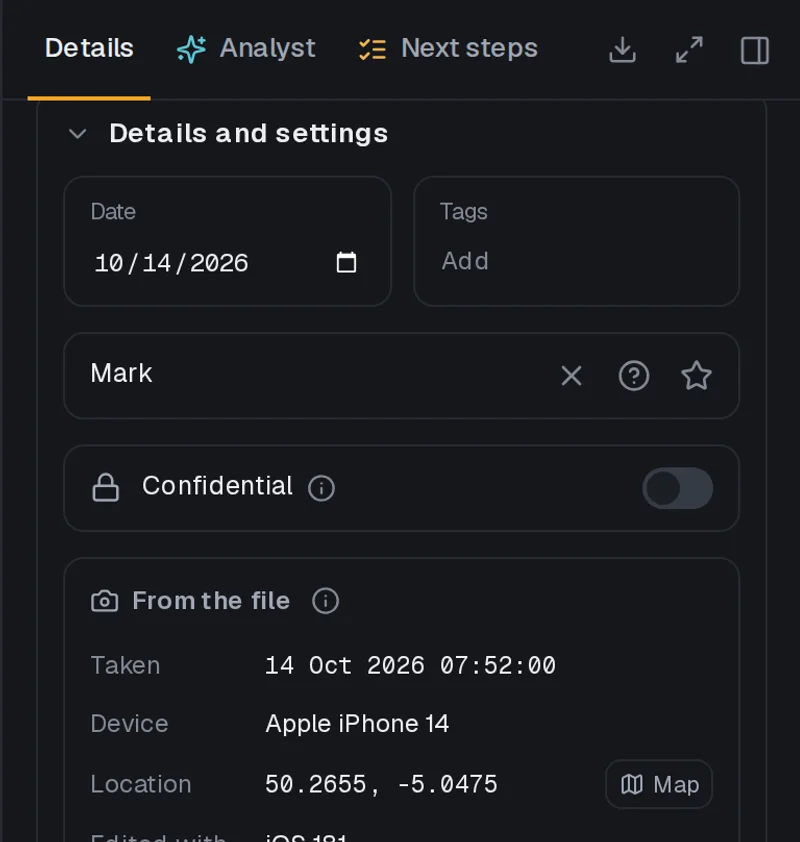
Each file keeps its own metadata, a SHA-256 fingerprint and its source.
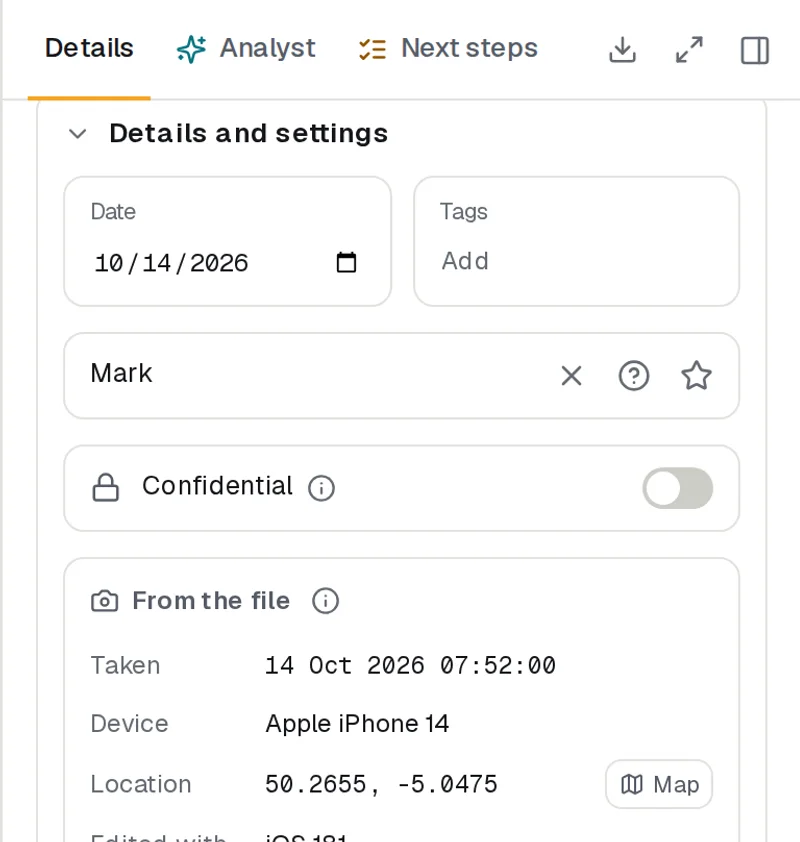
Web pages as evidence
Your assistant can capture a web page onto the board as an article, with its address.
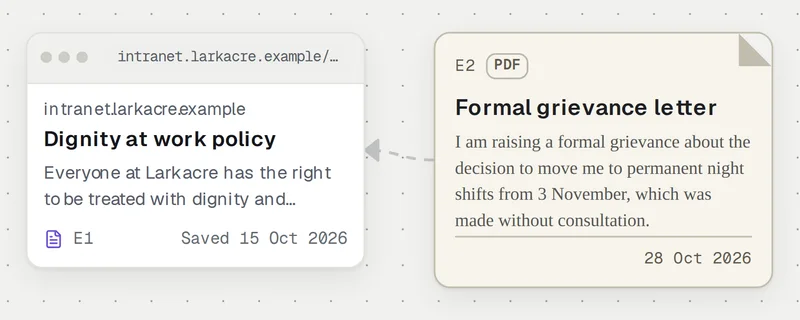
Confidential items
Mark an item confidential and only the people you give confidential access see it, its file and its links, even through their own assistant.
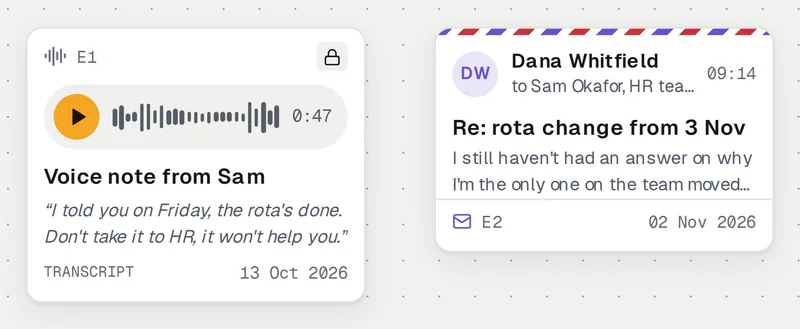
Files from a chat
Files you have in a chat with your assistant reach the case through an upload link it gives you.
An example case
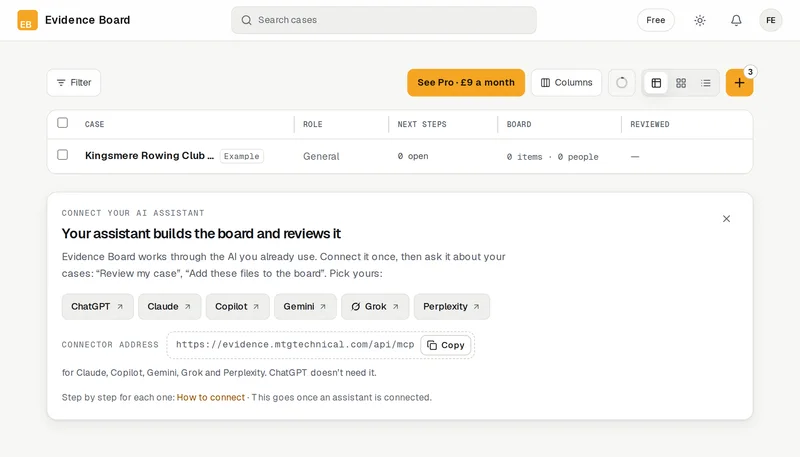
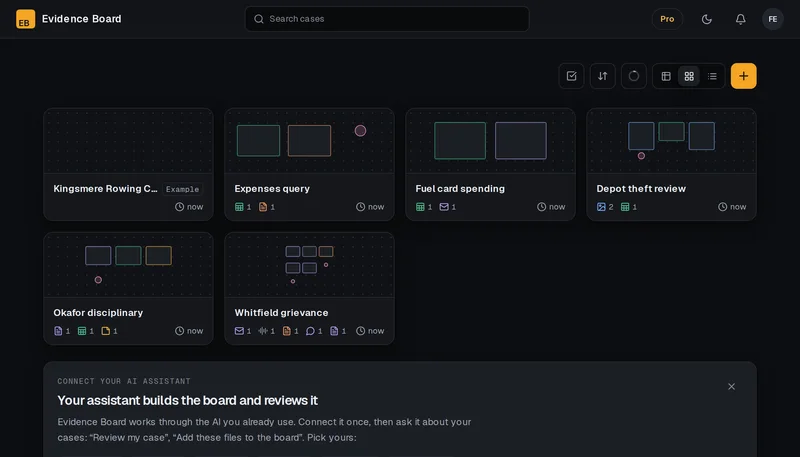
Every new account starts with an example case to try things on. It doesn’t count towards Free’s three.
Start from a template
New case starts on an open board, with a layout a click away any time, or on a template for a kind of work: Workplace, Insurance, Background, Legal, Journalism, or Novel or story. Each opens on a board laid out for it, with its zones drawn, its question in the brief and a few first next steps. A first case comes with a short tour of the board.
Chronology and timeline
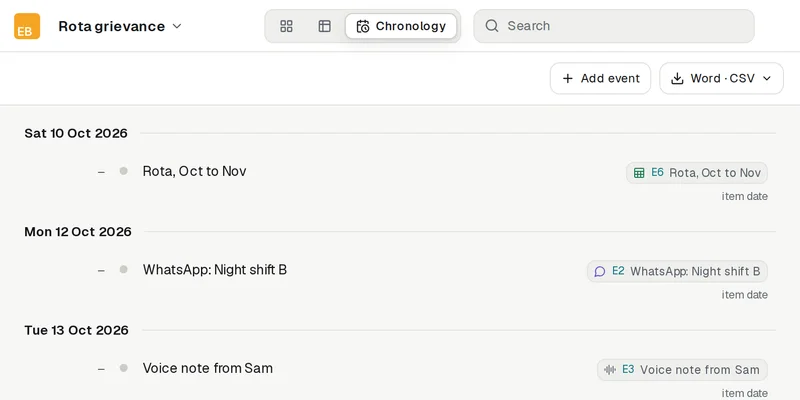
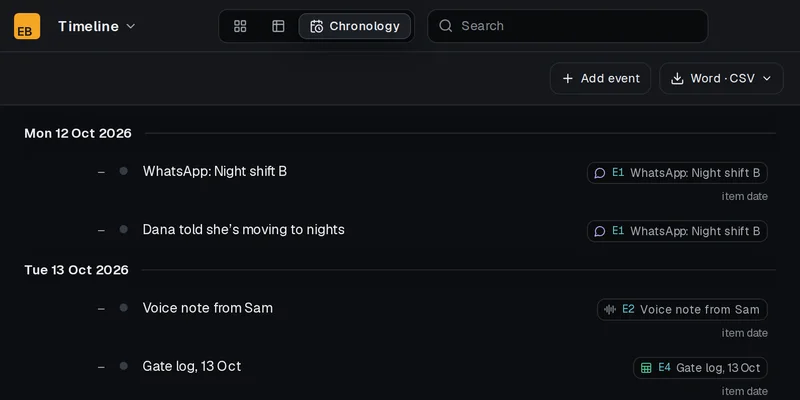
3Every date in the case, in order, each one tied to the item it came from.
Every dated fact, one row each, with the item it came from. Narrow it to who’s involved.
Events from the documents
Your assistant reads statements and documents and records the events with their dates and sources. Correct any of them yourself.
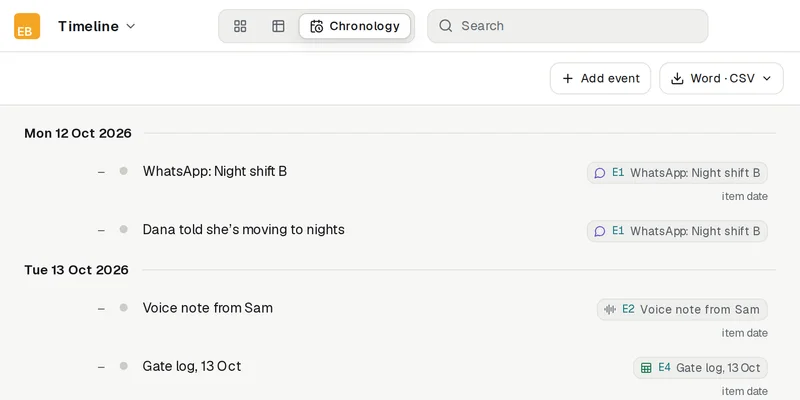
A timeline on the board
A string of the case’s events across the board, with the dates found in documents and items’ own dates a click away.
Your AI assistant
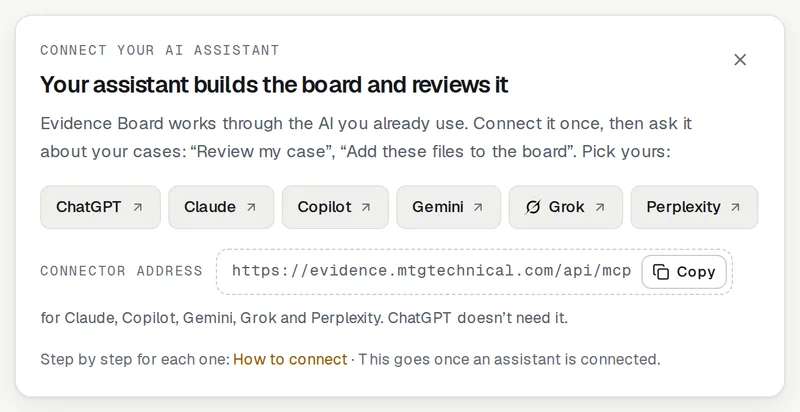
11Your own assistant works on the board through our connector, signed in as you. The app itself makes no AI calls, except transcribing audio on Pro.
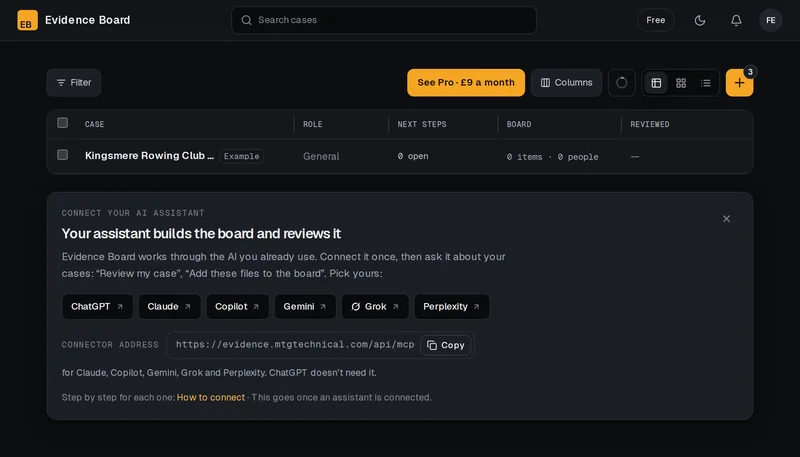
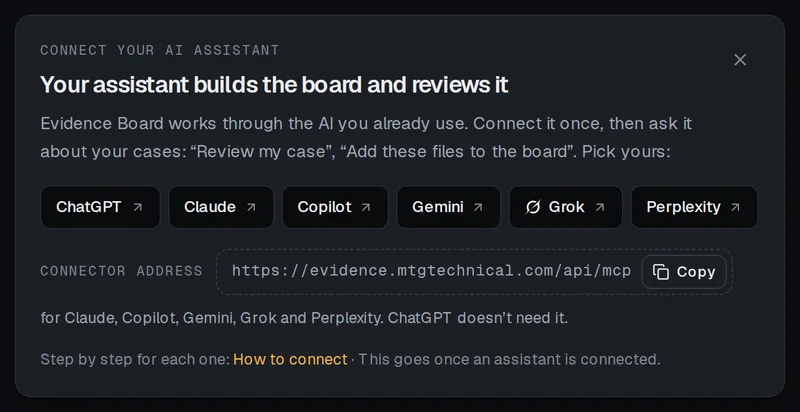
Connect the assistant you use, such as ChatGPT or Claude. It sees only the cases you can, and connecting asks for your two-step code if you use one.
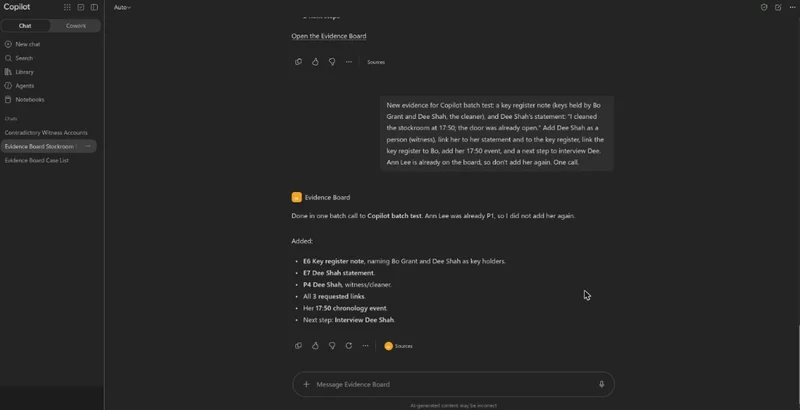
It builds the board
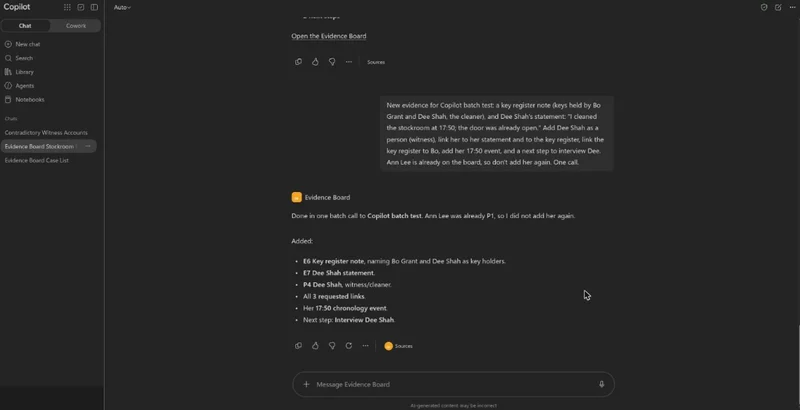
Give it files, notes or the story so far and it adds the cards, people, places, links and events, placed clear of what’s already there.
It researches
Ask it to look into a person, company or event and it captures its sources onto the board, each with its address.
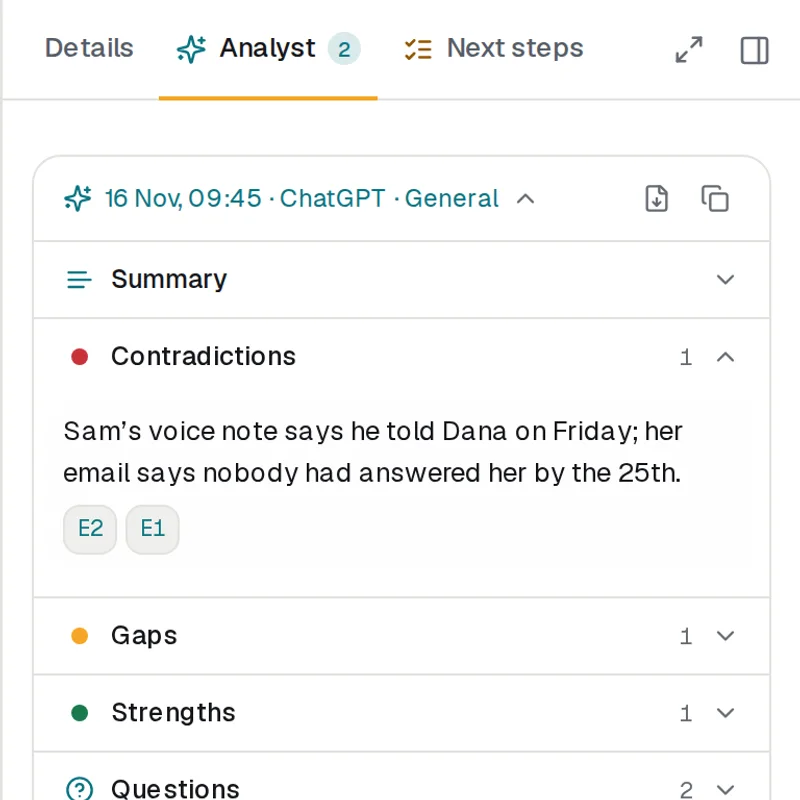
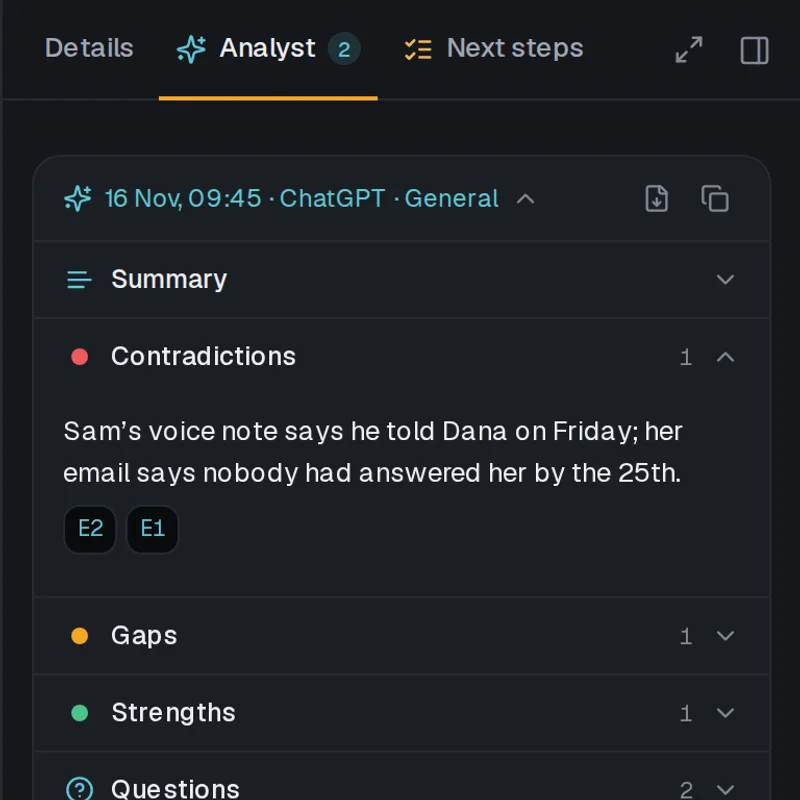
Its review is saved to the board’s Analyst panel, every finding citing the items it rests on, with a record of what it had read.
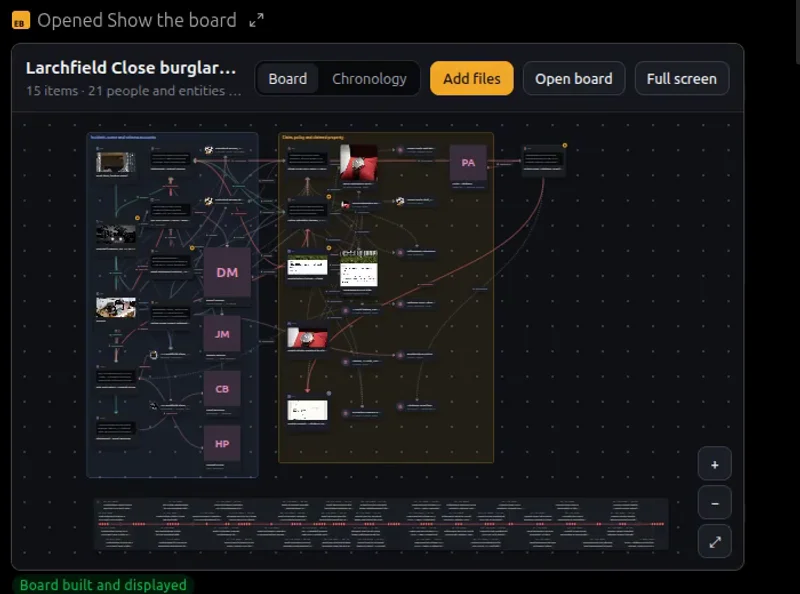
The board in the chat
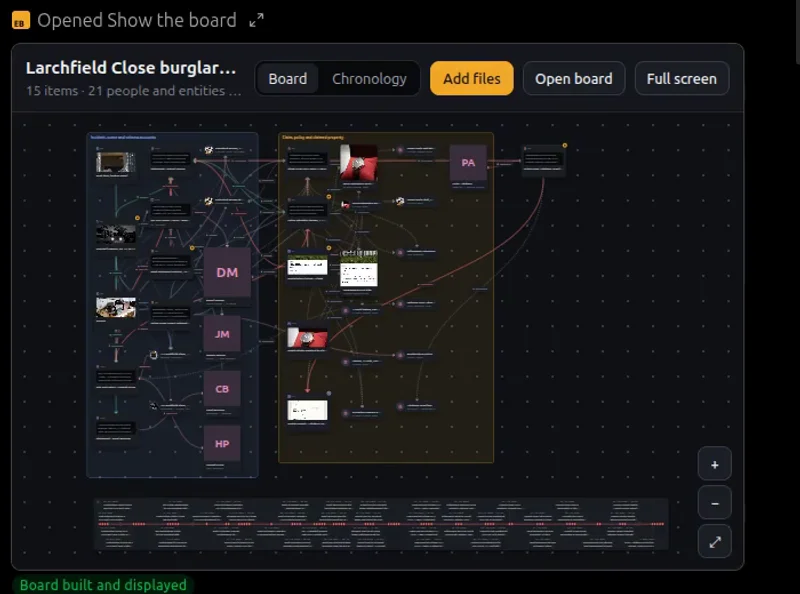
In assistants that can show it, it draws the board and the timeline inside the chat.
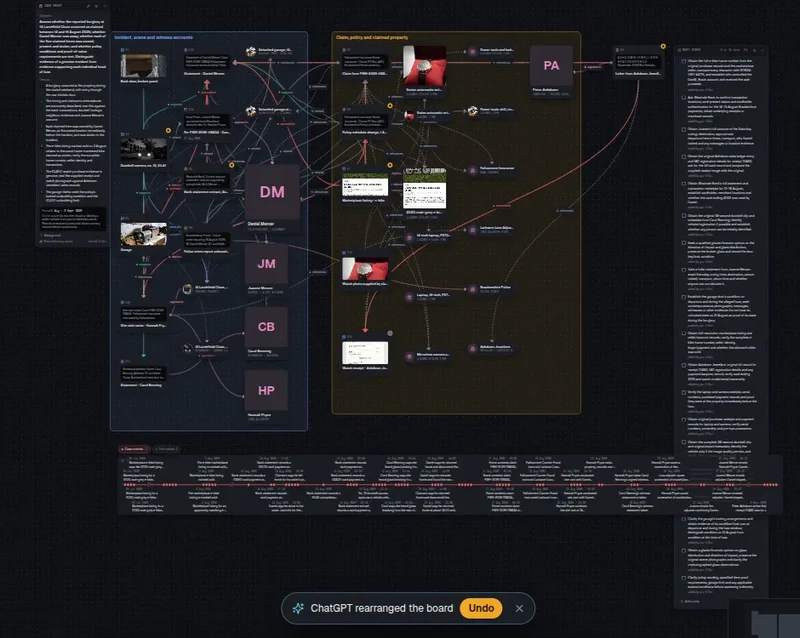
It tidies the board
Ask it to arrange the board, and undo it if you don’t like the result.
Suggestions wait for you
Links it isn’t sure of come as suggestions, for you to accept or reject.
Pictures
It pictures the main people, places and things as it builds: a person only from the case’s own photos, or one you confirm.
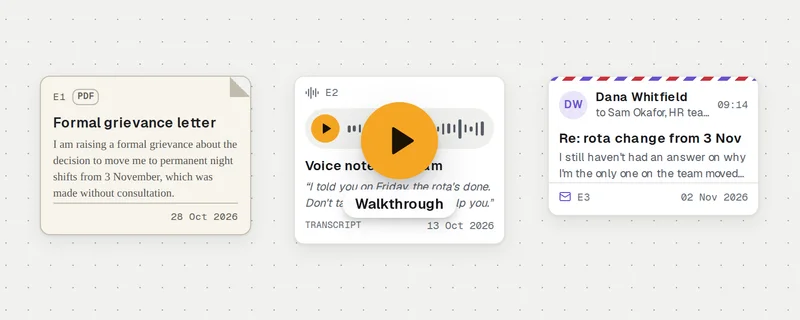
Walkthroughs
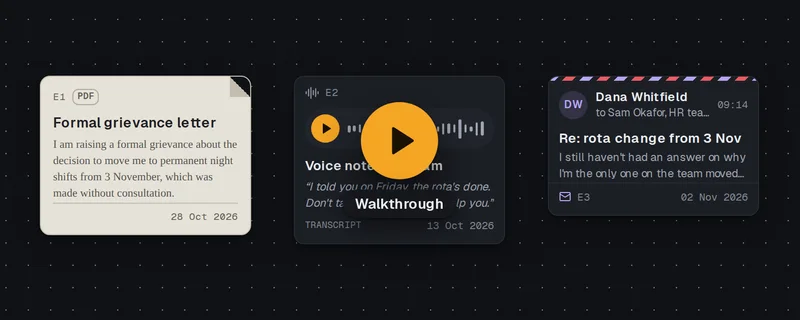
Ask it for a walkthrough and it makes a guided tour of the board, stop by stop, for anyone with the board to play.
It reads the case management
ProIt reads a case’s allegations, people, deadlines and time, and can record time and people’s roles. The outcomes stay yours to record.
Picks up where it left off
A new chat reads the findings so far and carries on from there.
Case management
11On Pro and Team, a case runs the investigation as well as holding its evidence.
Your cases
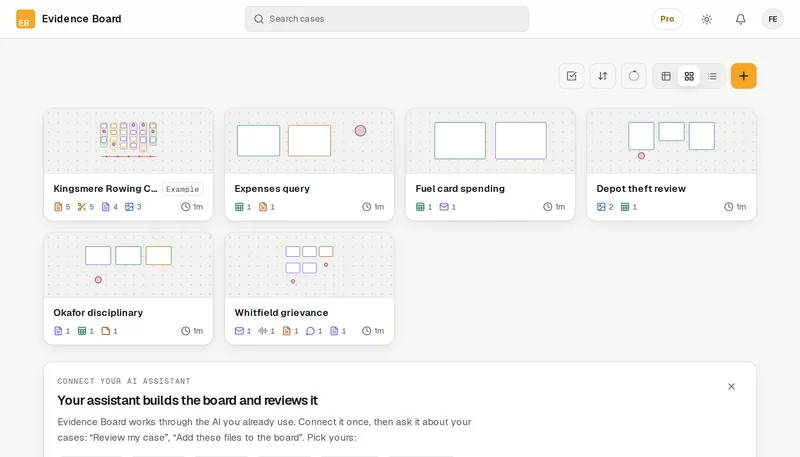
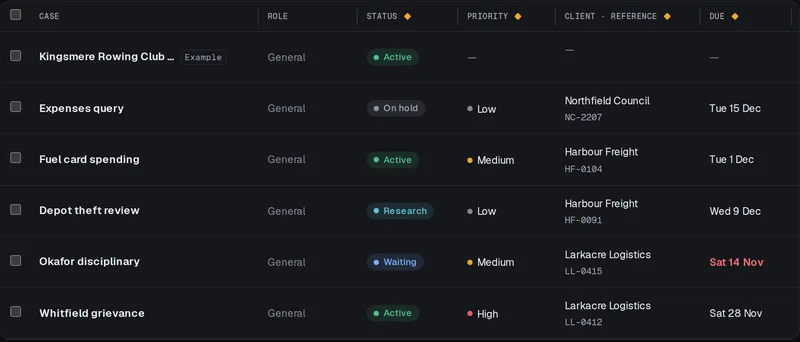
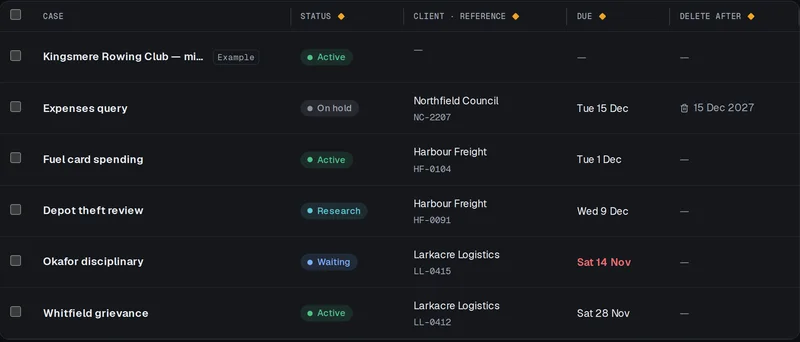
Your cases as a table, a grid or a list, filtered by whose they are, the choice remembered. Archive what’s finished and restore it whenever you like.
Caseload tracking
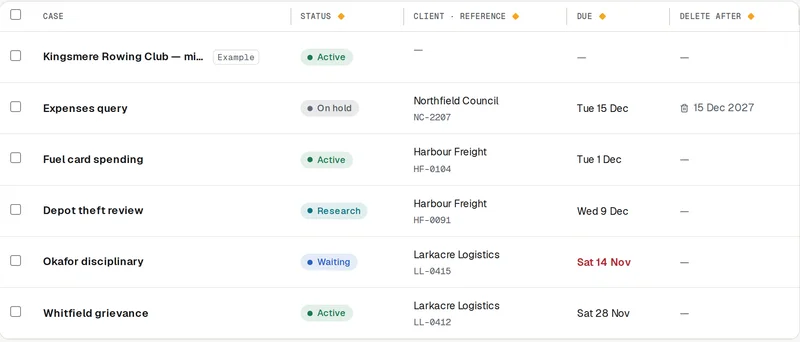
ProEach case’s status, priority, client, reference and due date, in the cases table, with a filter on each from the Filter menu or a column’s right-click, remembered for next time.
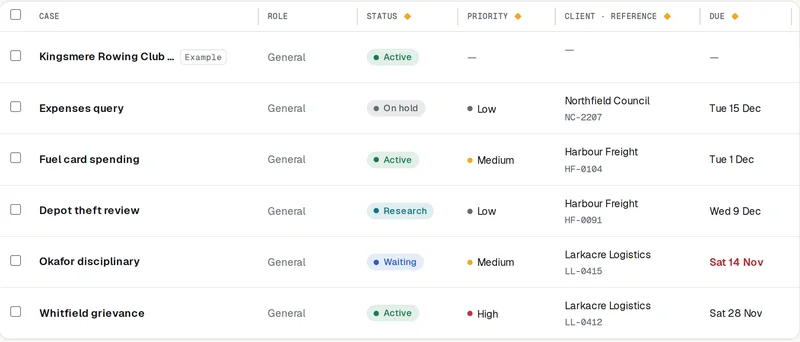
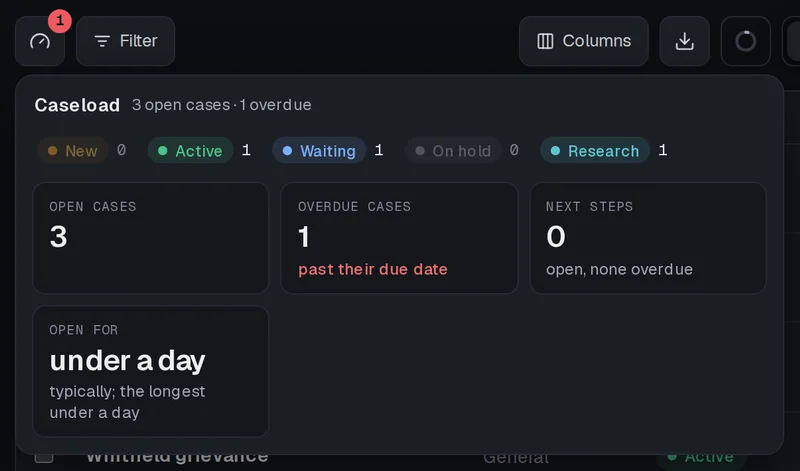
The caseload view
ProWhat’s open, what’s overdue, interviews outstanding, allegations decided and time against estimates, across every case, from a button beside Filter, with a CSV export. Click a status, the open cases or the overdue ones to filter the table.
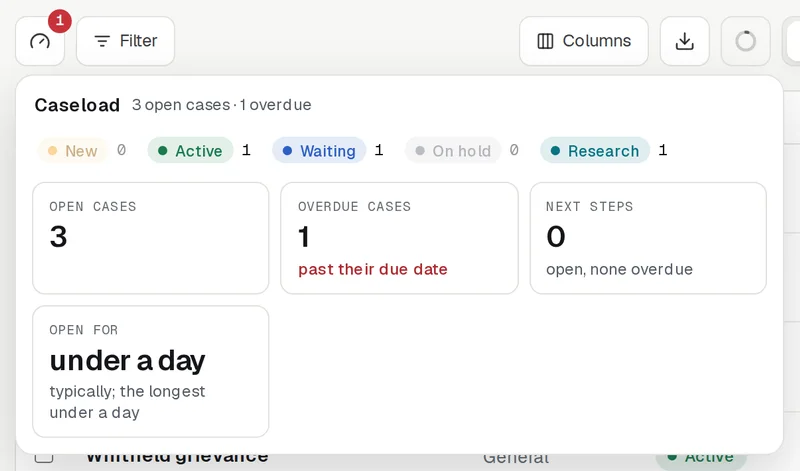
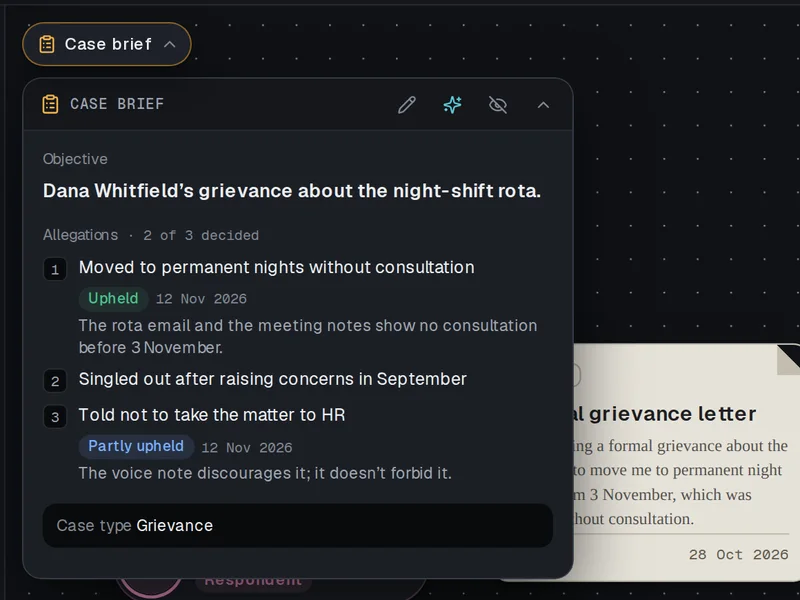
Mark a case as a grievance, a disciplinary or another workplace type: its theories become allegations, each with your outcome and reasons.
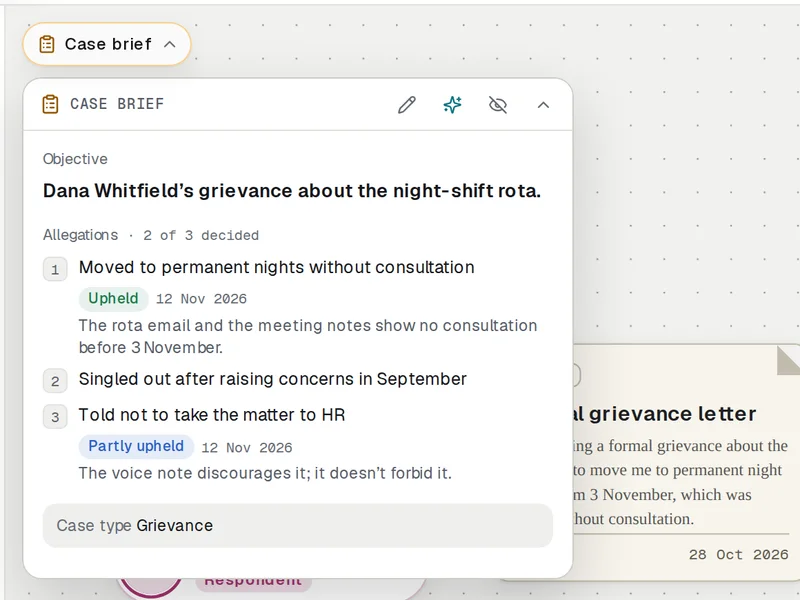
Parties and interviews
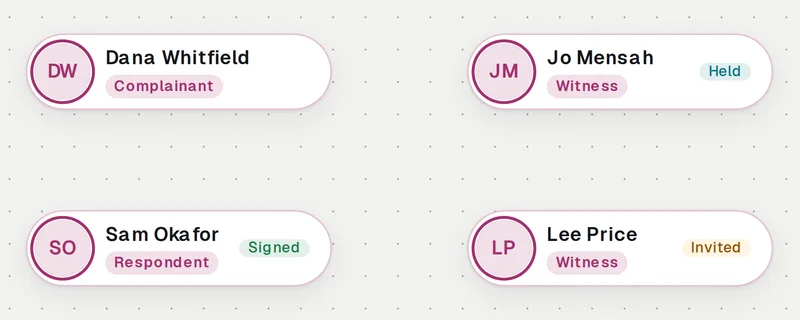
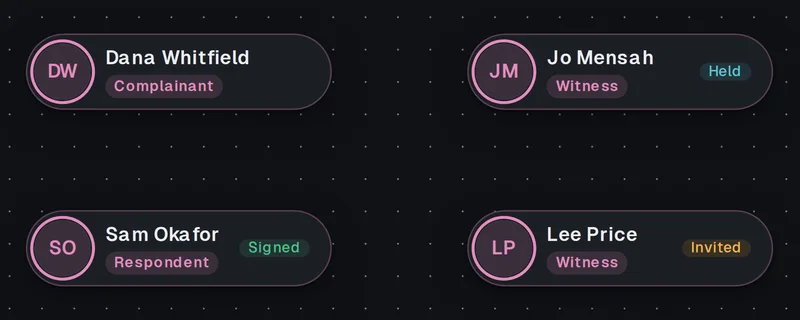
ProGive each person their role, sort witnesses by how essential they are, and track each interview from invited to signed.
Scope and estimate
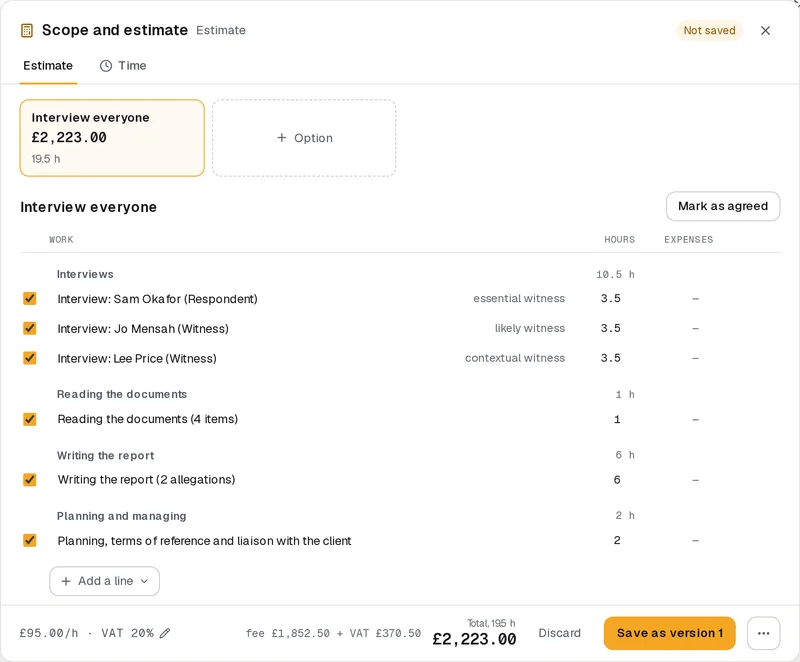
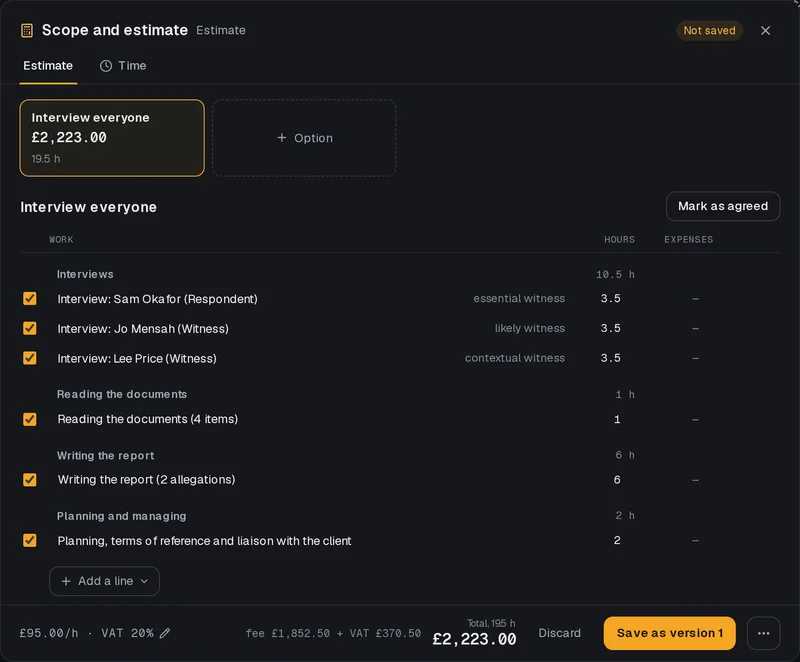
ProLines of hours and expenses, in two to four options, at your own rates with VAT, downloaded as an estimate in your firm’s name. Every version is kept.
Time
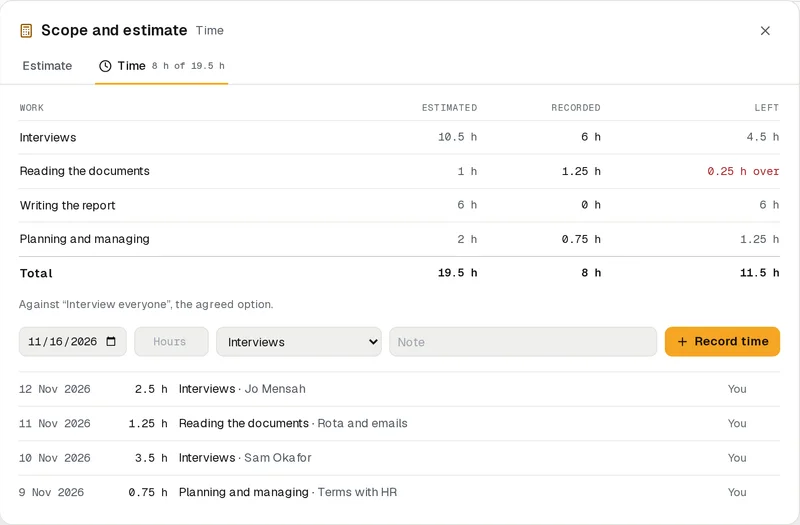
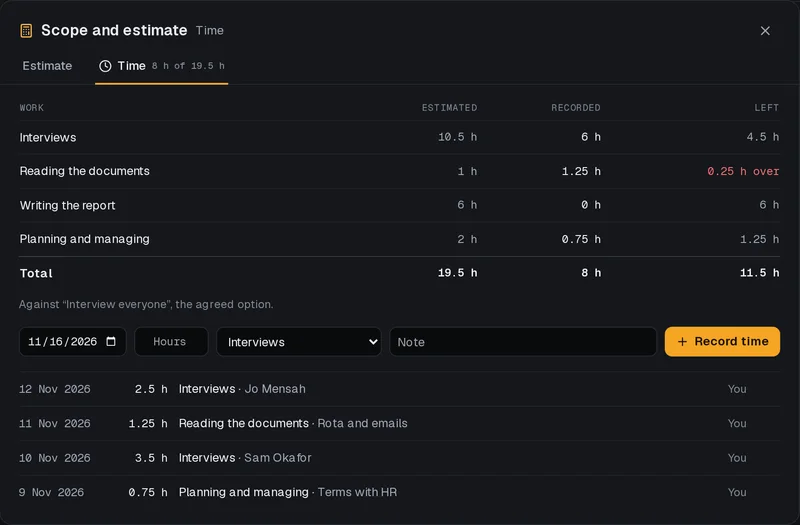
ProRecord time against the estimate and see what’s left.
Due dates and reminders
ProGive a next step a due date. With reminders on for that board, whoever has it is emailed the morning it’s due and once if it’s overdue, with a Monday summary if they want one.
Retention dates
ProGive a case a “Delete after” date. You’re emailed 30 and 7 days before, it’s deleted on the day, and the confirmation email is your record that it’s gone.
Whose view
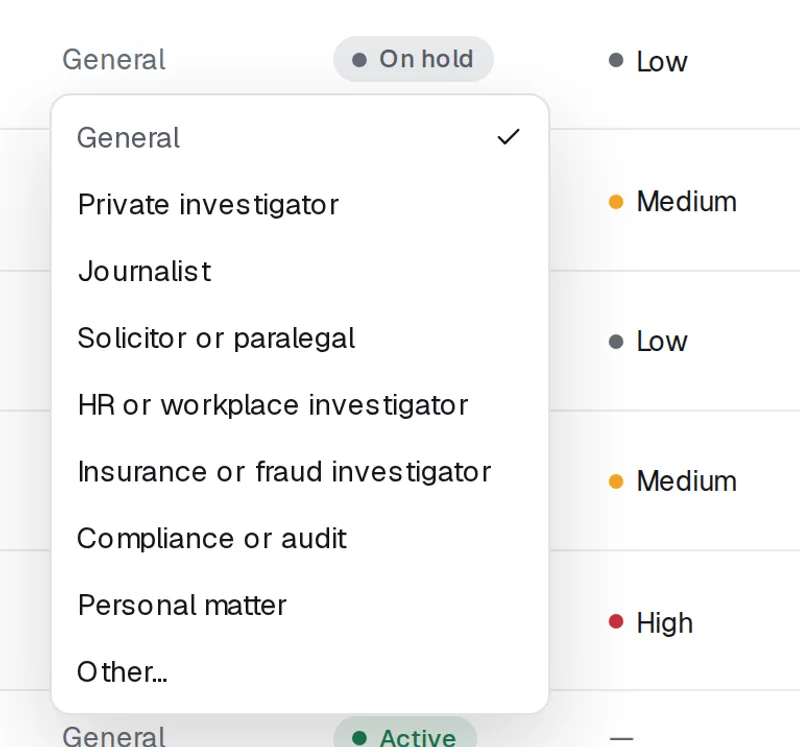
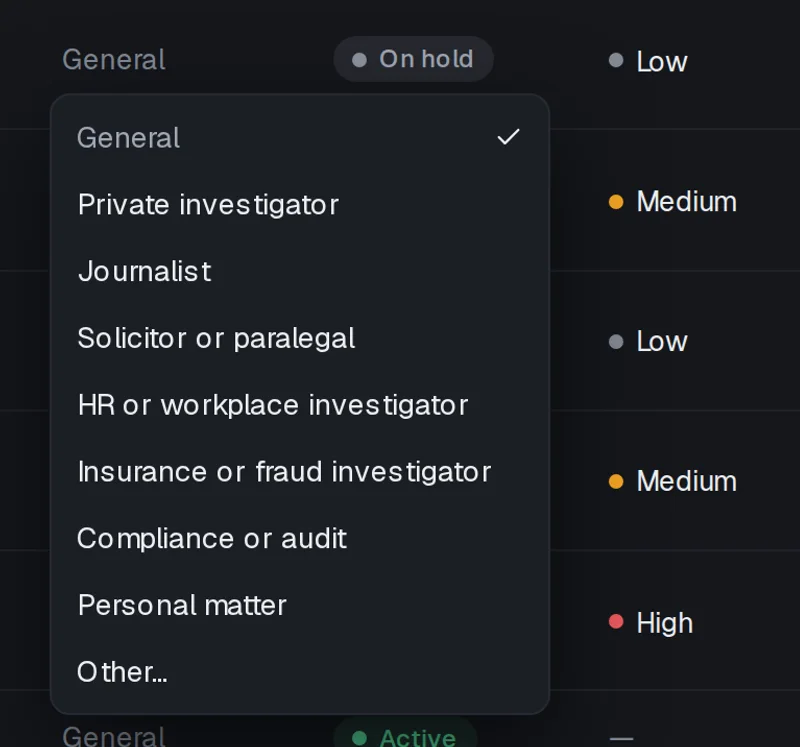
Set whose view a case is reviewed from, such as a workplace investigator or a journalist.
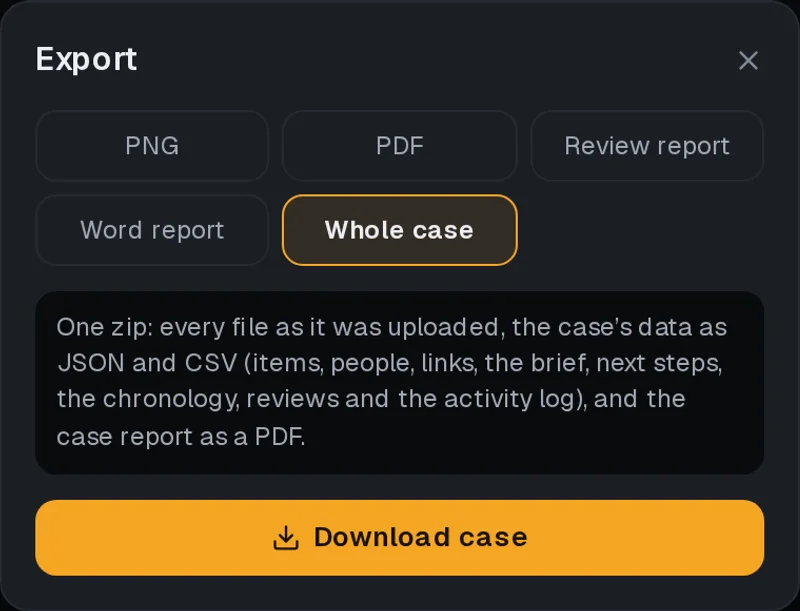
Download a case
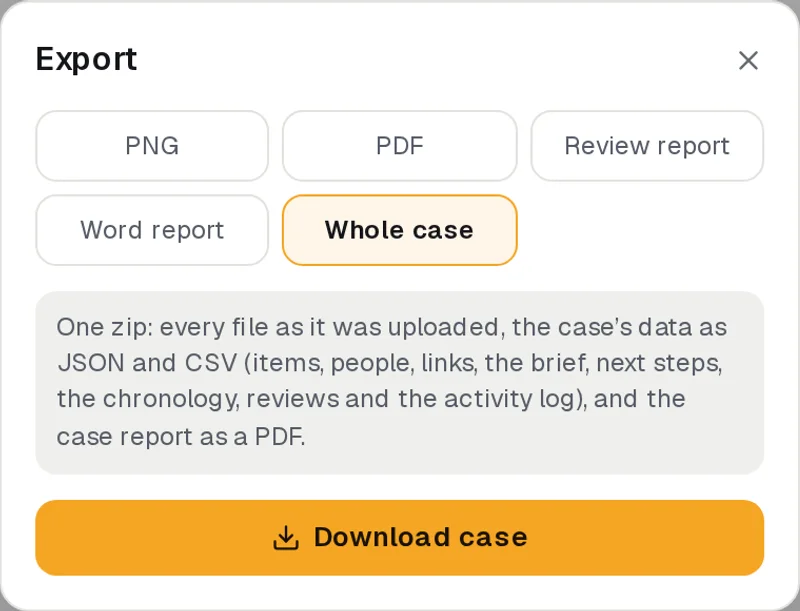
One case as a zip: its files as uploaded, its data as JSON and spreadsheets, and the case report.
Sharing and teams
10A case is private until you share it.
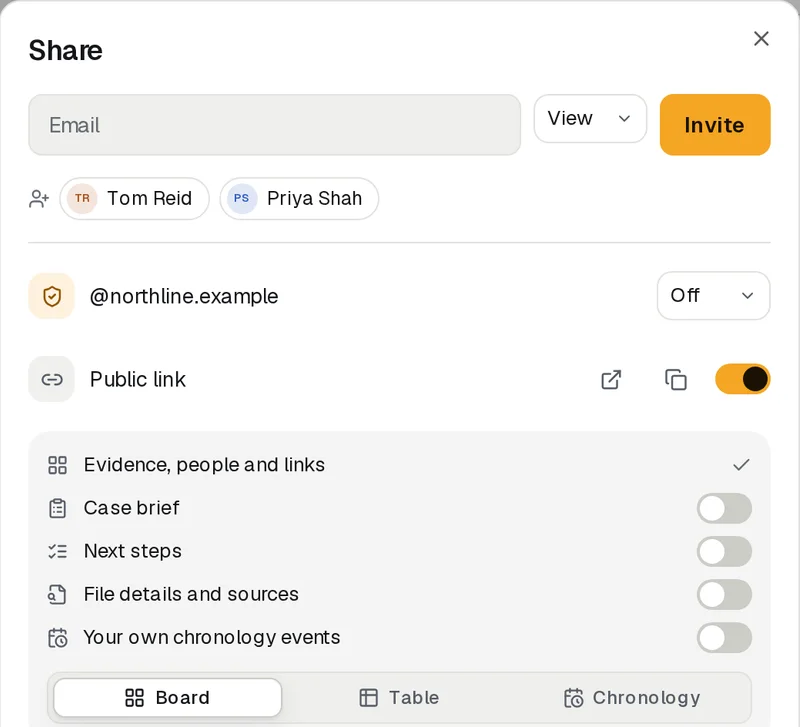
Read-only links
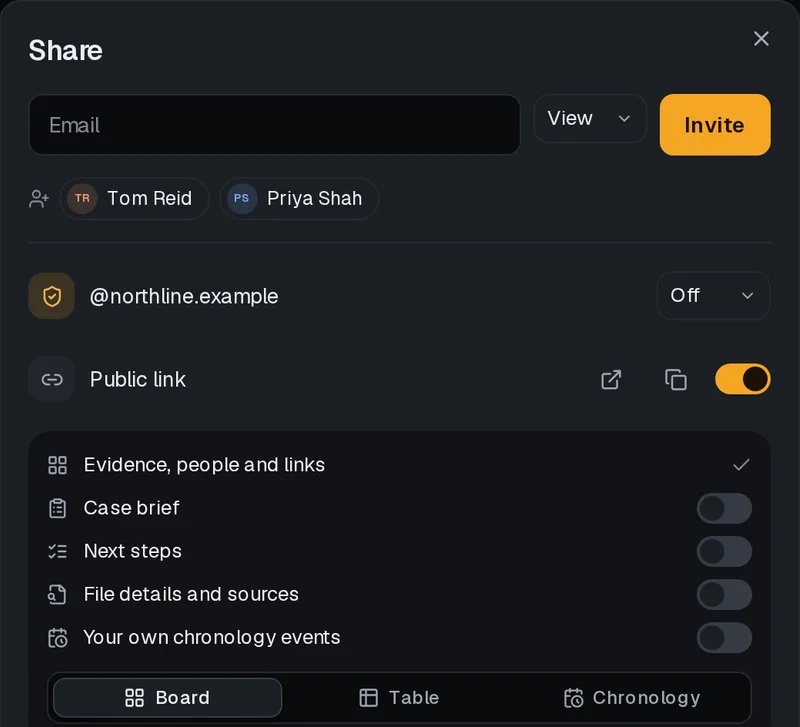
Share a case by a link that opens read only, on the board, the table or the chronology. Turn it off at any time.
Invite people to view
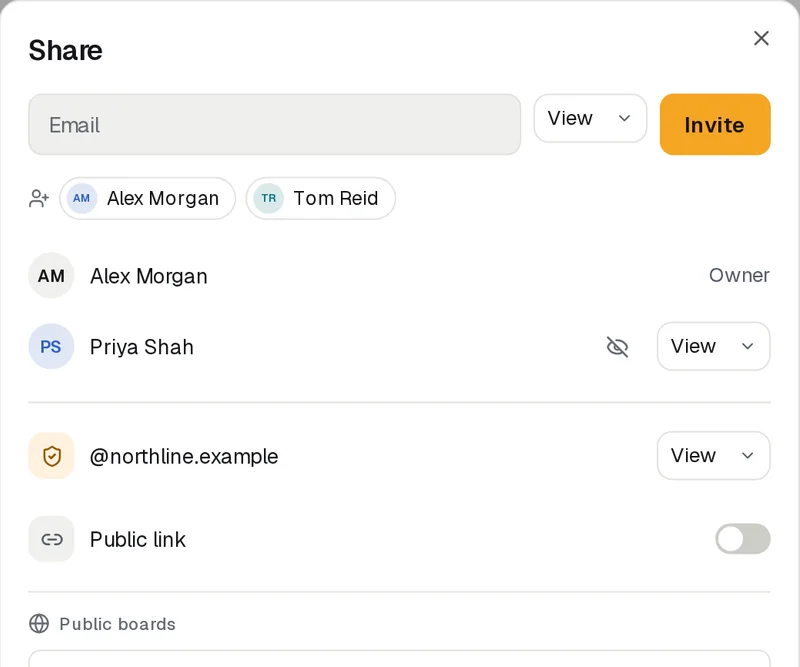
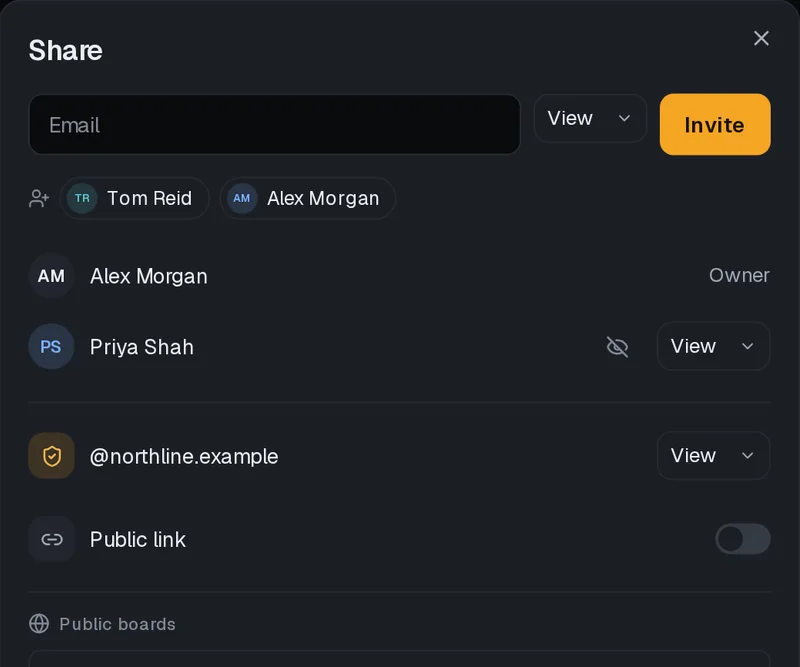
ProInvite people by email to view a case, with or without confidential access.
Share with your organisation
ProOpen a case to everyone at your work email’s domain.
Editing together
TeamInvite colleagues as editors. You see who’s on the board, and each other’s changes appear as they’re made.
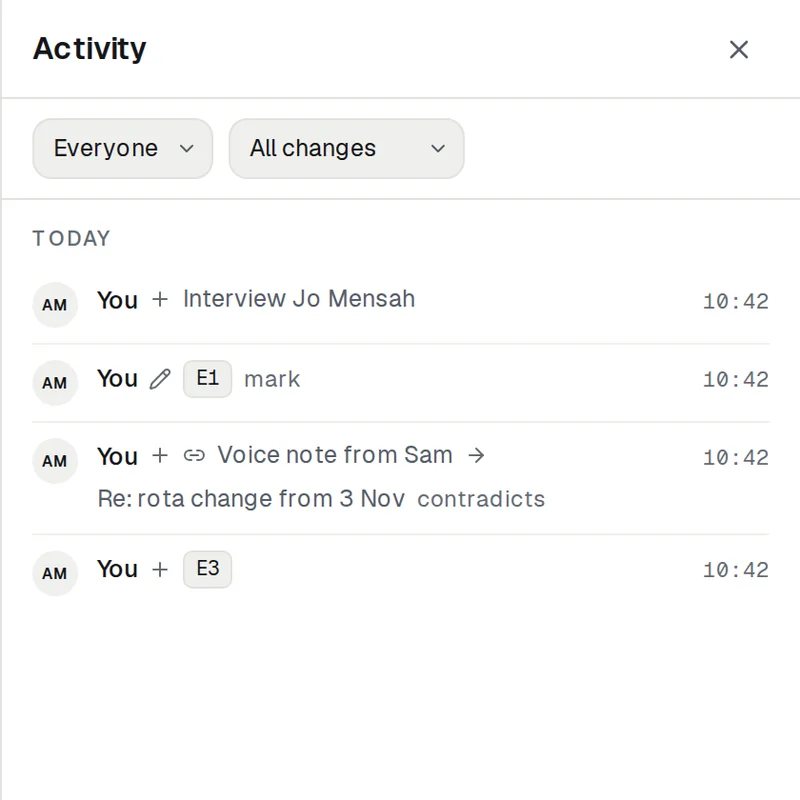
Activity
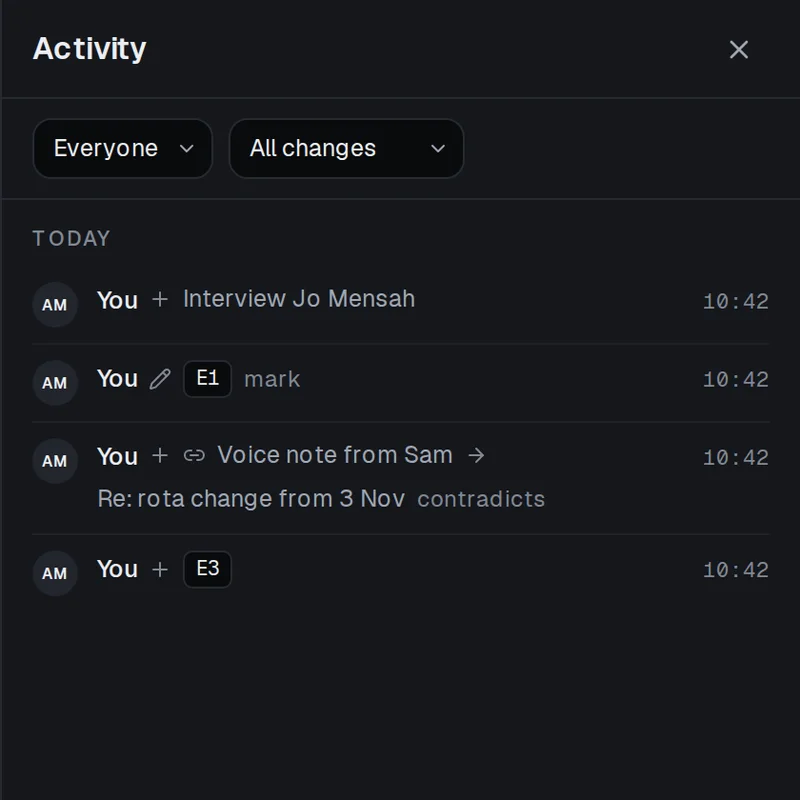
A log of who changed what on the board, on a computer.
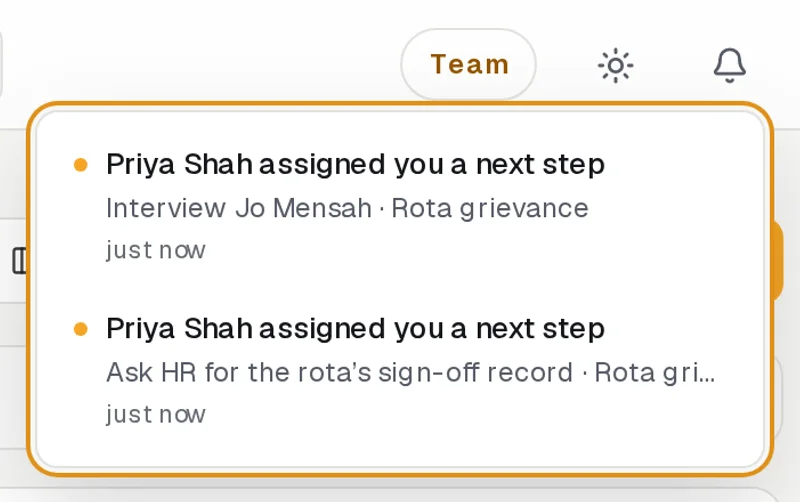
Notifications
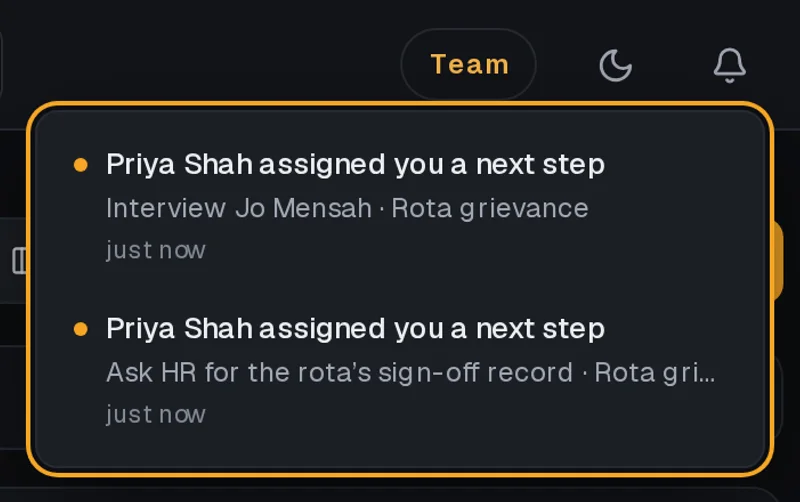
A bell in the app for invitations, your team’s news and recordings transcribed.
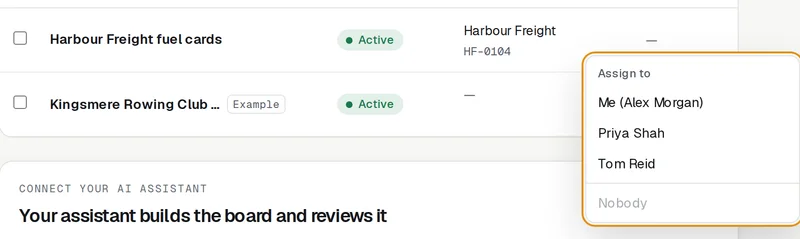
Assign work
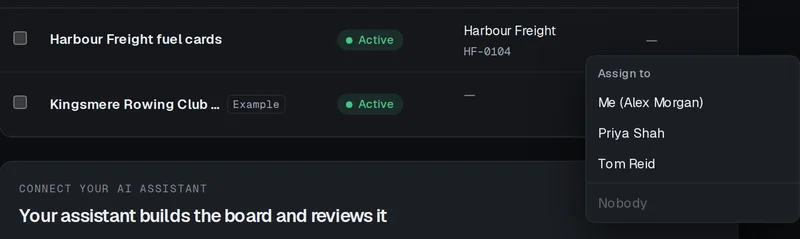
TeamAssign a case or a next step to a colleague, and see everyone’s next steps from the cases page.
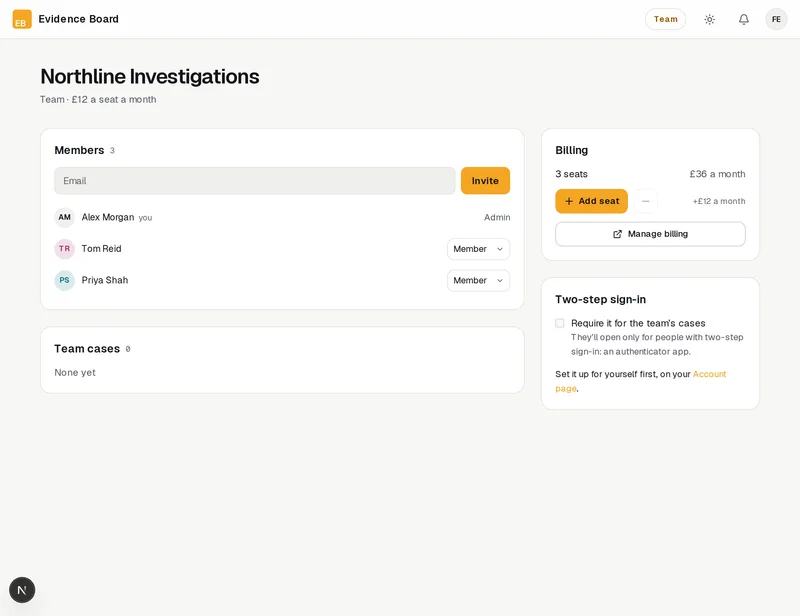
The Team plan
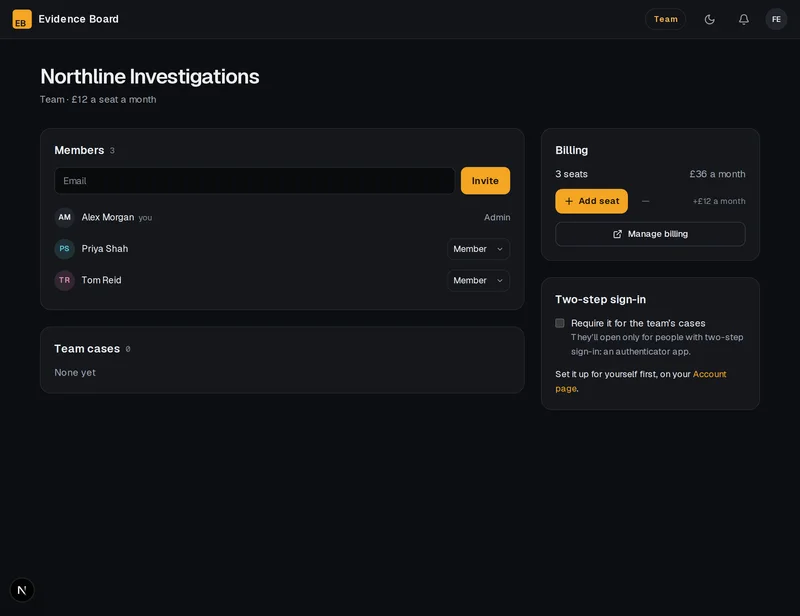
TeamFrom two seats, 50 GB of storage a seat pooled across the team, team cases, and an admin page with billing and invitations.
Two-step sign-in, required
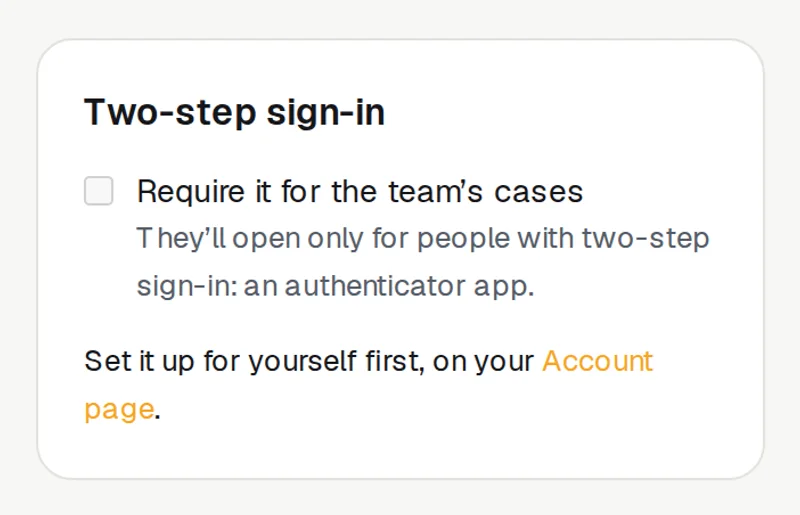
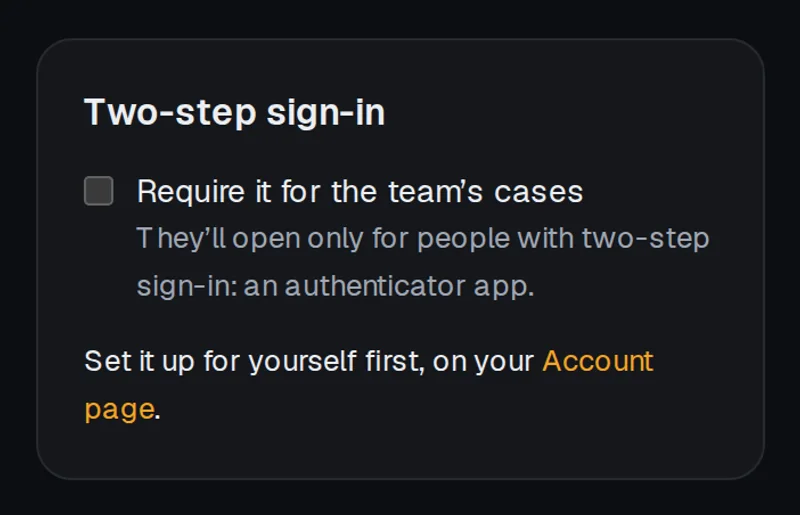
TeamA team’s admin can require two-step sign-in for the team’s cases, on the website and through assistants.
Play a walkthrough
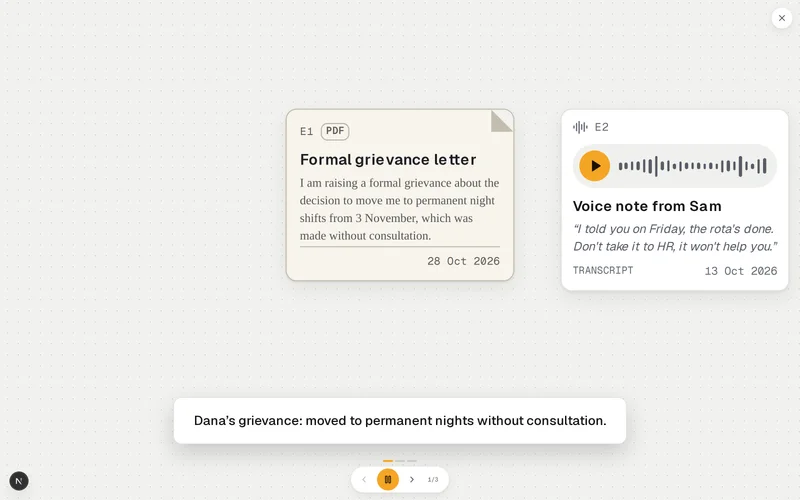
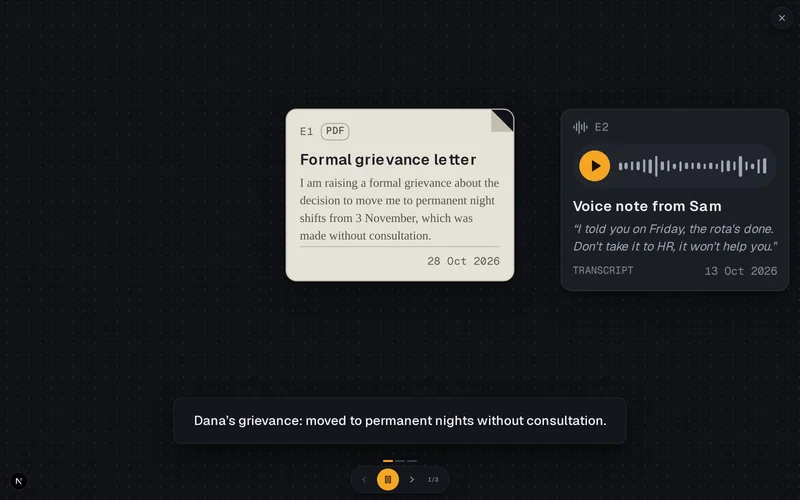
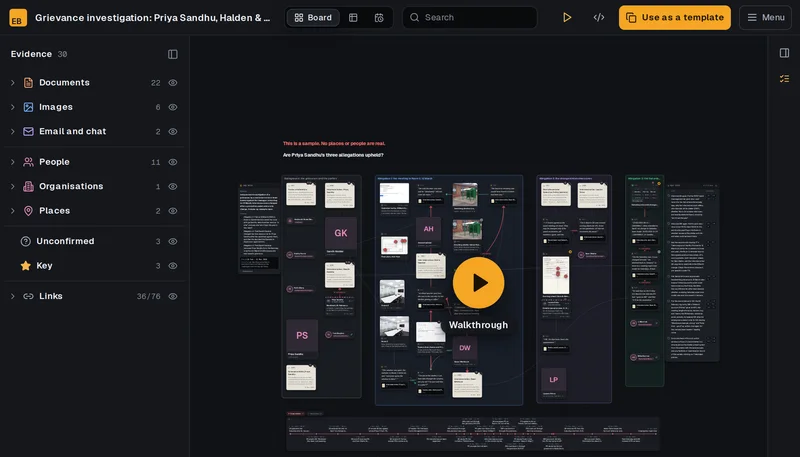
Play a case’s walkthrough full screen: on your own board, from a share link or on a public board.
Public boards
4Researched cases we publish, every fact linked to its source.
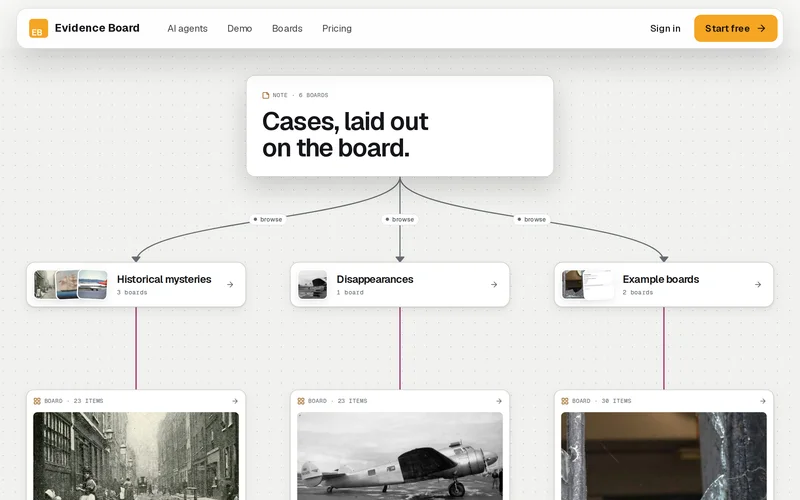
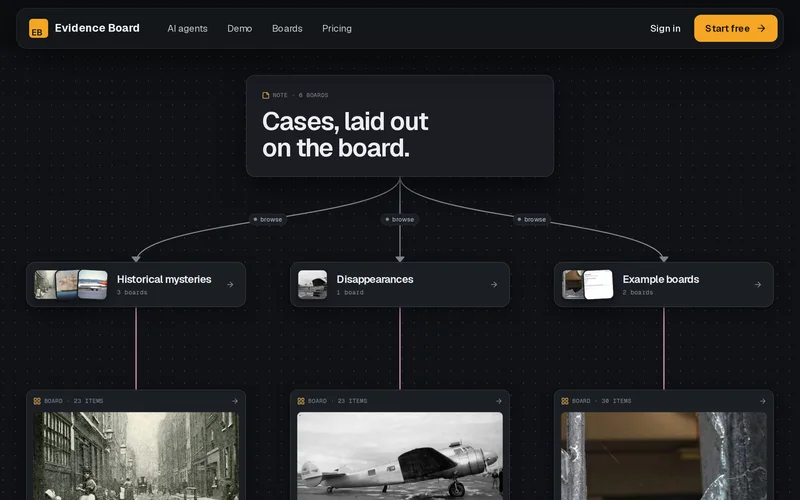
Historical cases and example boards, researched and published by us, with no living person named.
Use as a template
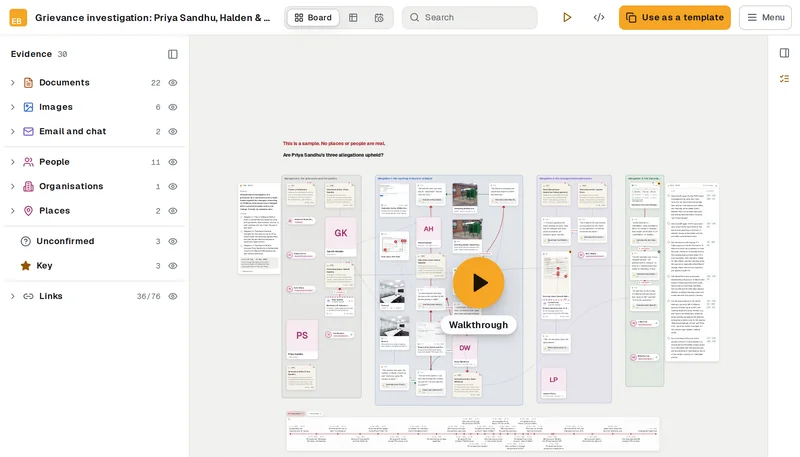
Copy an example board into your account and start from it.
Embed a board
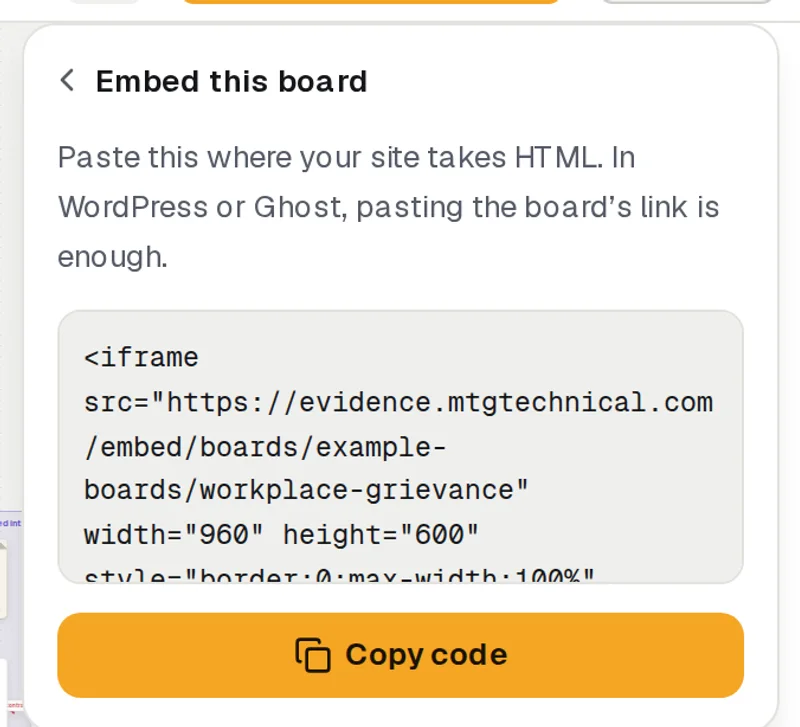
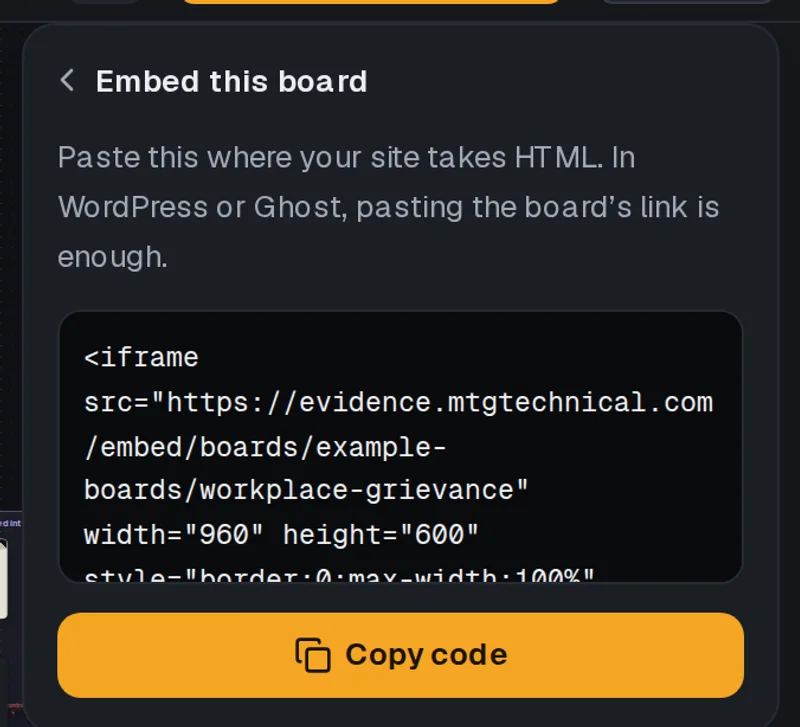
Put a public board in your own article or page, or paste its link where sites show previews.
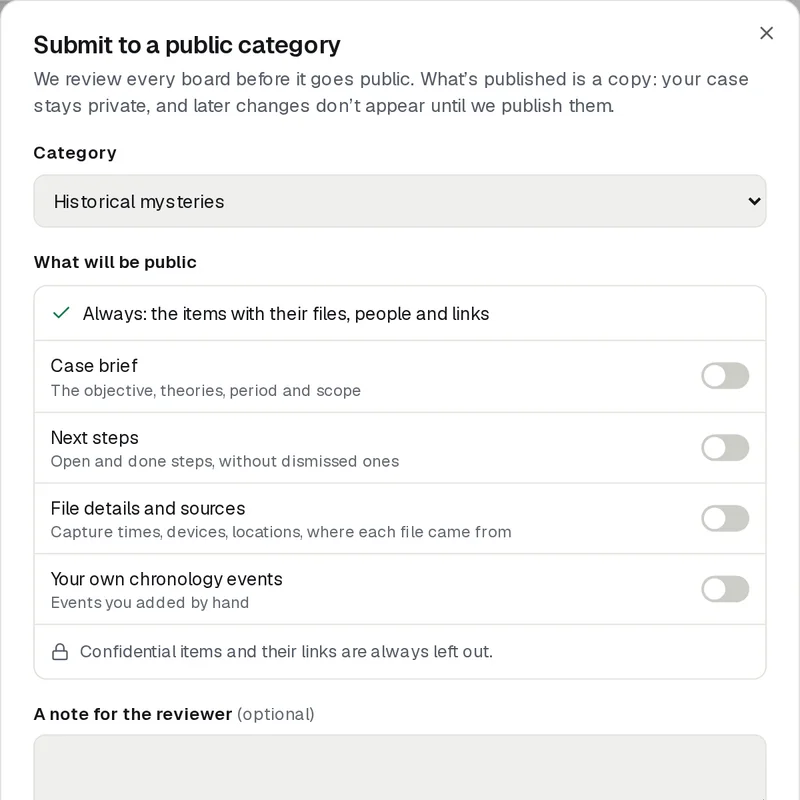
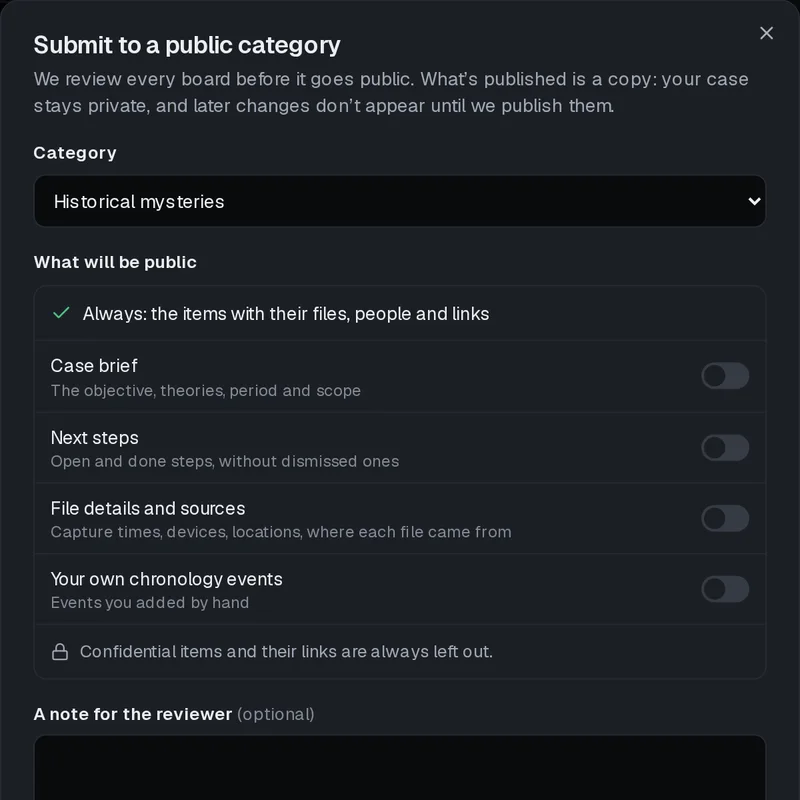
Put your board forward for one of our categories. We check it before anything is published.
Your account and data
7Your cases stay yours: private by default, in London, and yours to take or delete.
Sign in
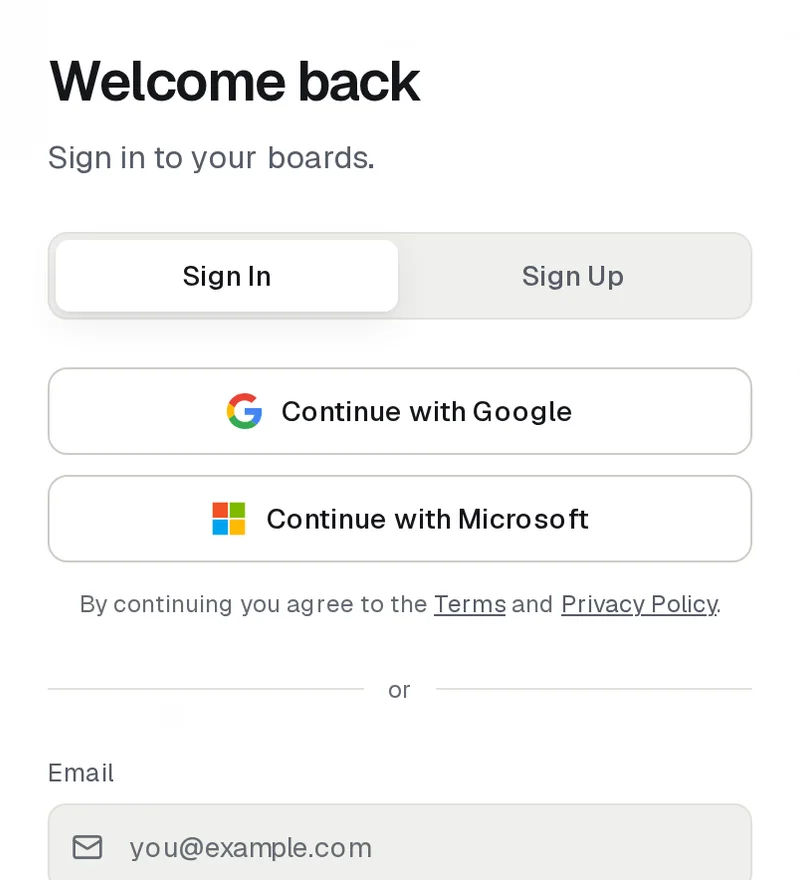
With an email and password, Google, or Microsoft.
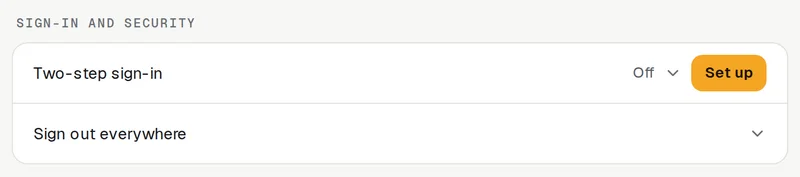
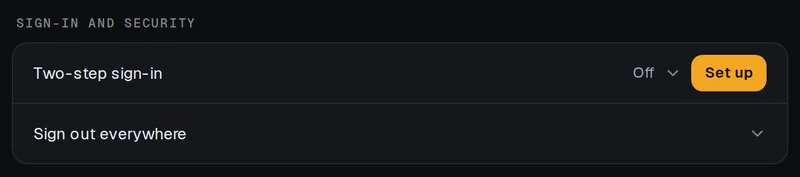
A code from an authenticator app at sign-in, and a browser you trust can be remembered.
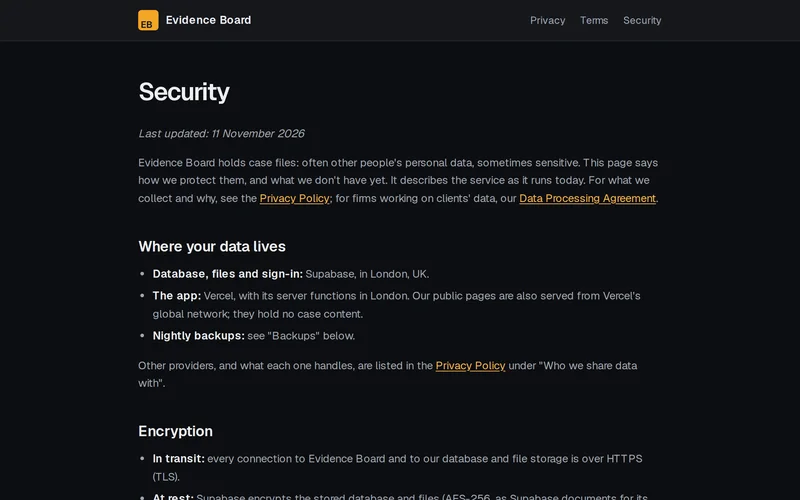
Cases are private until you share them, stored in London, and files are served by links that expire within the hour.
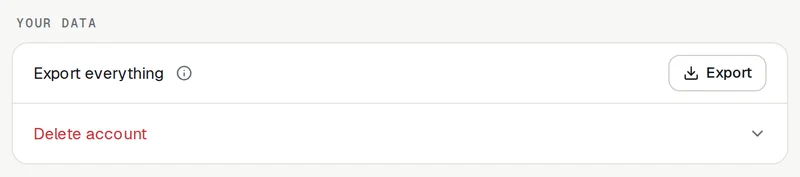
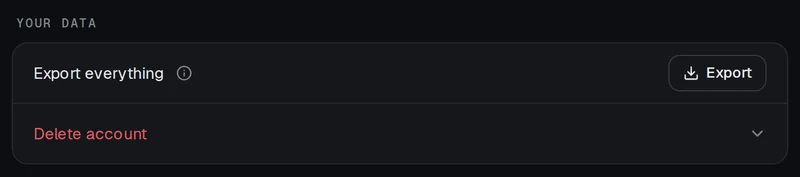
Export or delete everything
Export everything in your account, or delete it, whenever you like.
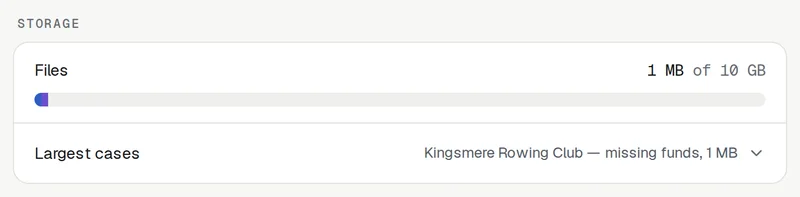
Storage
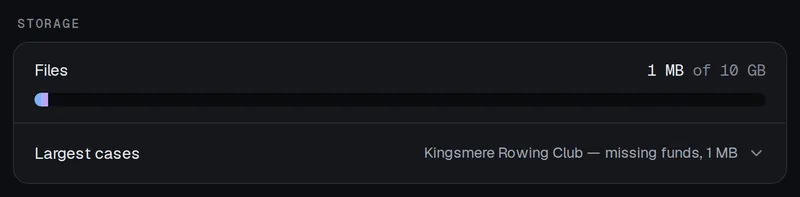
See what your files take up, by kind, and your largest cases, in Settings.
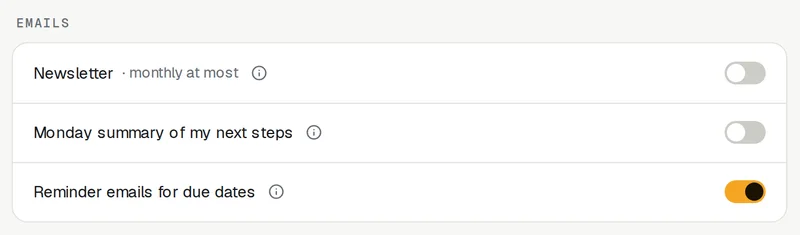
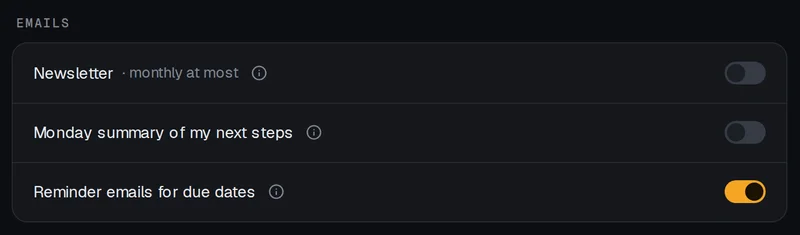
Turn off reminder emails for every board at once, and opt in to a monthly newsletter of what’s new.
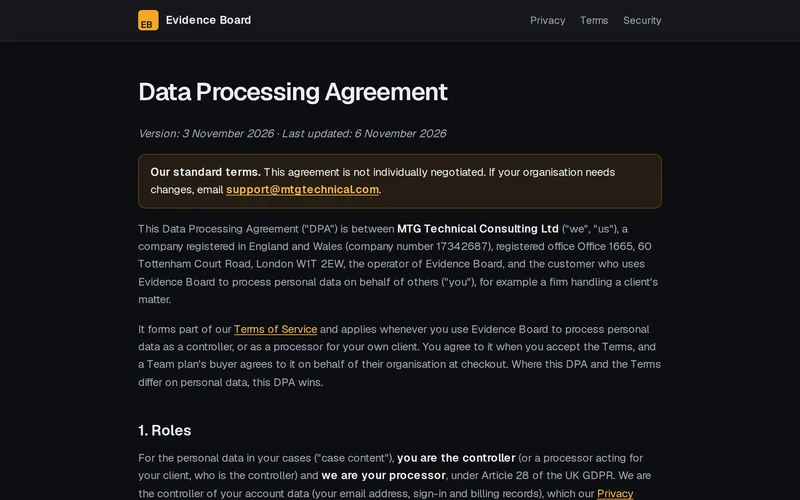
For organisations working on other people’s personal data: under UK GDPR, and part of the Terms you agree to at sign-up.
What it doesn’t do
- Invoicing, billing clients or keeping accounts.
- A client portal: a client gets a read-only link, or an invitation to view.
- Legal advice.
- A chain of custody: keep original evidence in your own systems.
- AI of its own: reading and reviewing happen in your own assistant. The one exception is transcribing audio on Pro.
- Publishing your board by itself: public boards are published by us, after checking, including those you submit.
- An app to install: it runs in the browser, on a computer or a phone.
Prices are on the pricing page; what changes month by month is in What’s new.
Questions
What can Evidence Board do?
Lay out a case’s evidence on one board, with the people, places and events it concerns, labelled string between them and a chronology; have your own AI assistant build, research and review it; share it read-only or work on it with colleagues; and, on Pro and Team, run the investigation: allegations, interviews, estimates, time and deadlines. Every feature is listed by plan on the features page. Every feature
Does Evidence Board transcribe audio?
Yes, on Pro and Team. Uploaded recordings, and a video’s sound, are transcribed with who spoke when: 300 minutes a month on Pro, and 300 a seat on Team. On Free, recordings are kept but not transcribed. AI and your data
Can it read scanned documents and CCTV video?
Yes. Your assistant reads scanned PDFs page by page, and videos through still frames the app takes from them, including CCTV exports in AVI.
Which files can I upload?
PDF, Word and text files, emails (EML and MSG) with their attachments, WhatsApp chat exports, spreadsheets (CSV and XLSX), photos including iPhone HEIC, audio including voice notes, and video including AVI. Files are up to 10 MB, with larger video and audio allowed on Pro and Team.
Can I put evidence on a map?
Yes. A map card shows the case’s area with pins at real places, and string runs from a pin to the evidence about it. Maps are drawn from our own copy of OpenStreetMap, so no map service sees what you look at.
Can it present a case as a walkthrough?
Yes. Ask your assistant for a walkthrough and it makes a guided tour of the board, stop by stop, which plays full screen on the board, from a share link or on a public board.
Can I work on a case with colleagues?
Yes. On any plan, share a read-only link. On Pro, invite people by email to view. On Team, colleagues edit the board with you, see each other’s changes as they happen, and can be assigned cases and next steps.
Does it work on a phone?
Yes, in the phone’s browser: every page fits the screen, the board included. There’s no app to install.
Can I export a case?
Yes. Save the board as a PNG or PDF, download a case as a zip of its files, data and report, export your caseload as a CSV on Pro, or export everything in your account.